Branding and Customizing the XML Button in NINJIO's Phish Reporting Module:
Bring your organization’s branding to the new XML 2.0 Reporter button in NINJIO’s Phish Reporting module.
How-To Video:
Step by step Instructions:
Follow these steps to easily upload your logo, adjust display names, and customize your button’s look right inside the admin interface.
Step 1: Log in and open the Phish Reporting module.
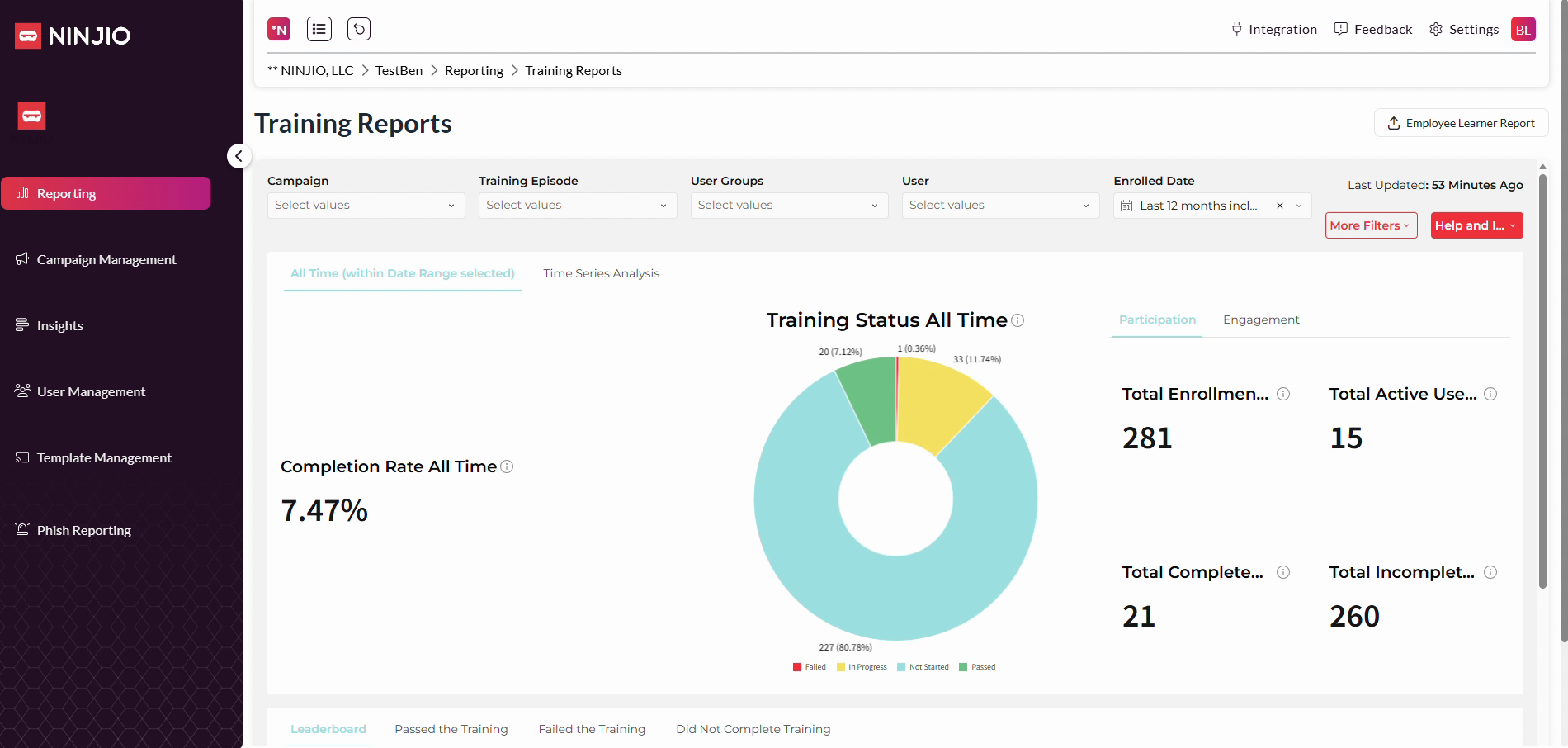
Step 2: Click Reporter Settings to access customization options.
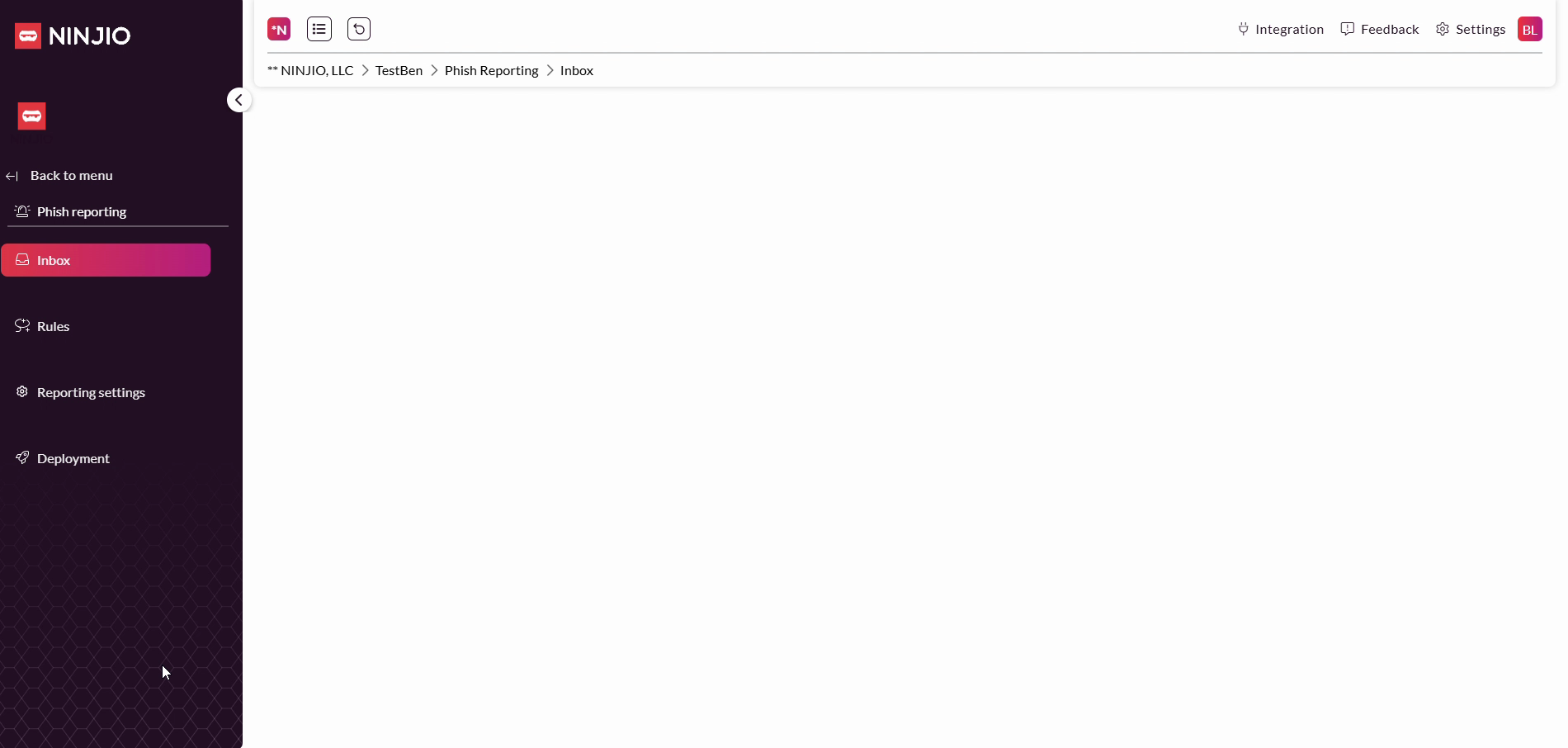
Step 3: Notice the refreshed settings interface, with updated options for branding and theming the Outlook button.
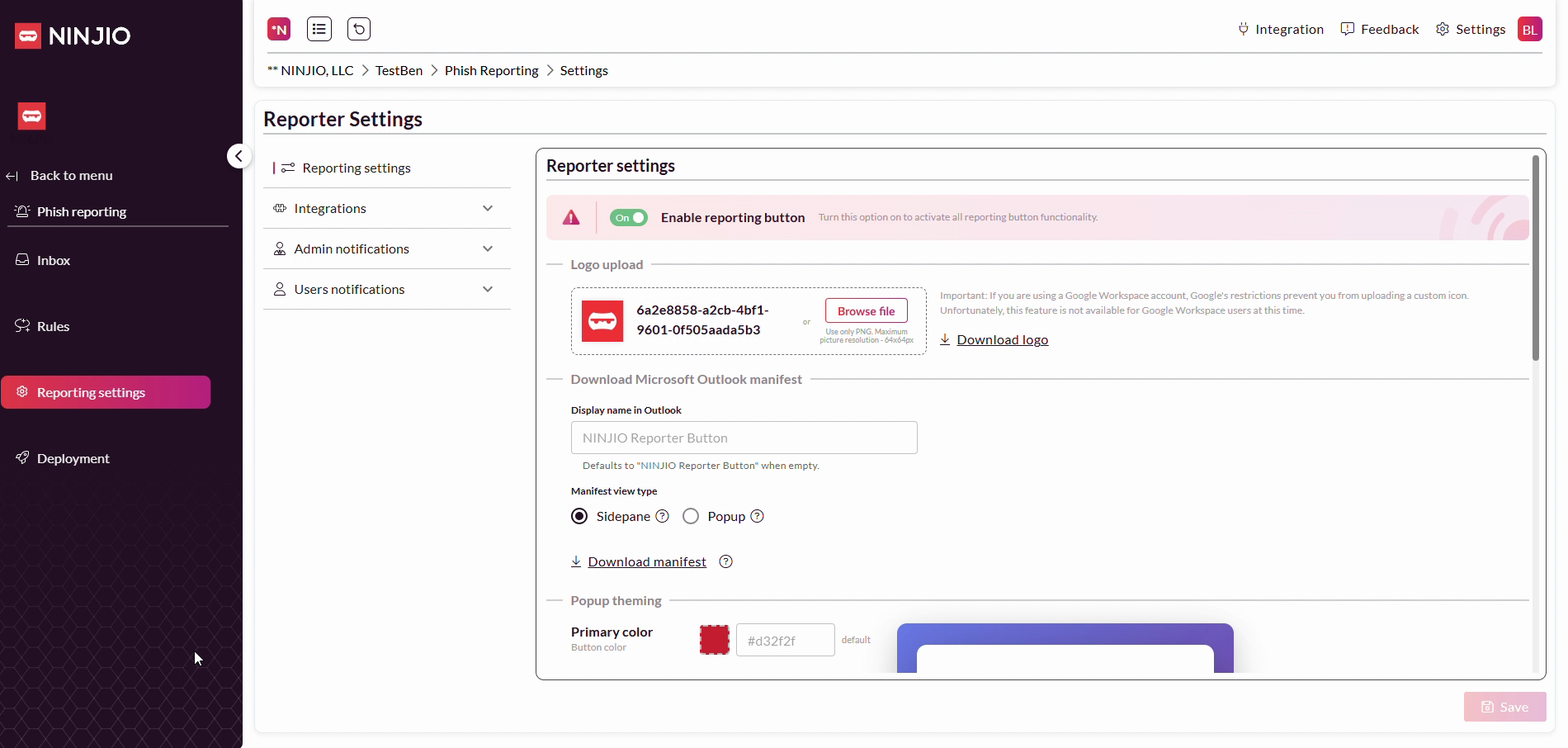
Step 4: Find the new sections for Download Microsoft Outlook Manifest and Pop-up theming. In the old XML setup, branding changes required editing the XML directly. That’s no longer needed.
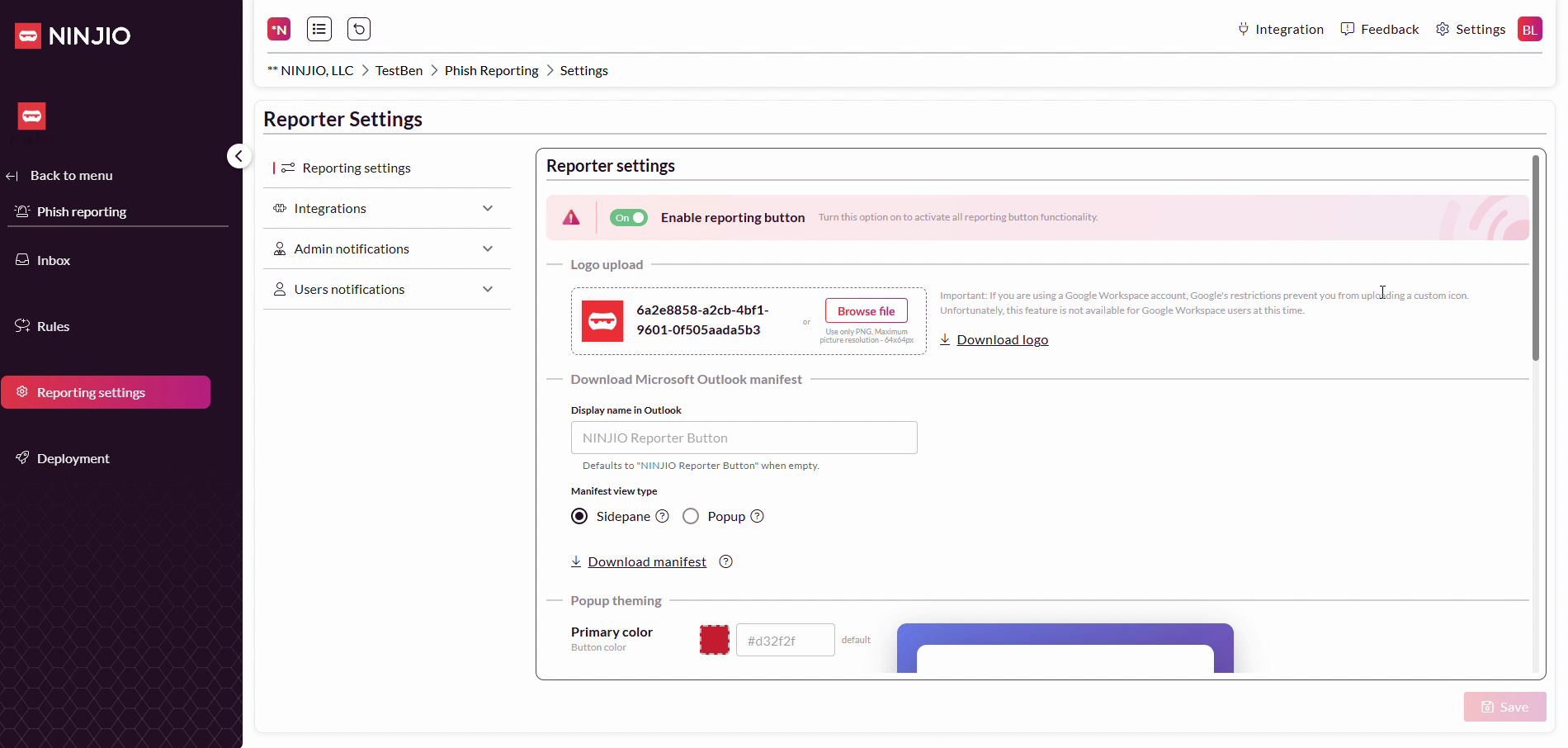
Step 5: To add your logo, select Browse File and choose the image you want to use.
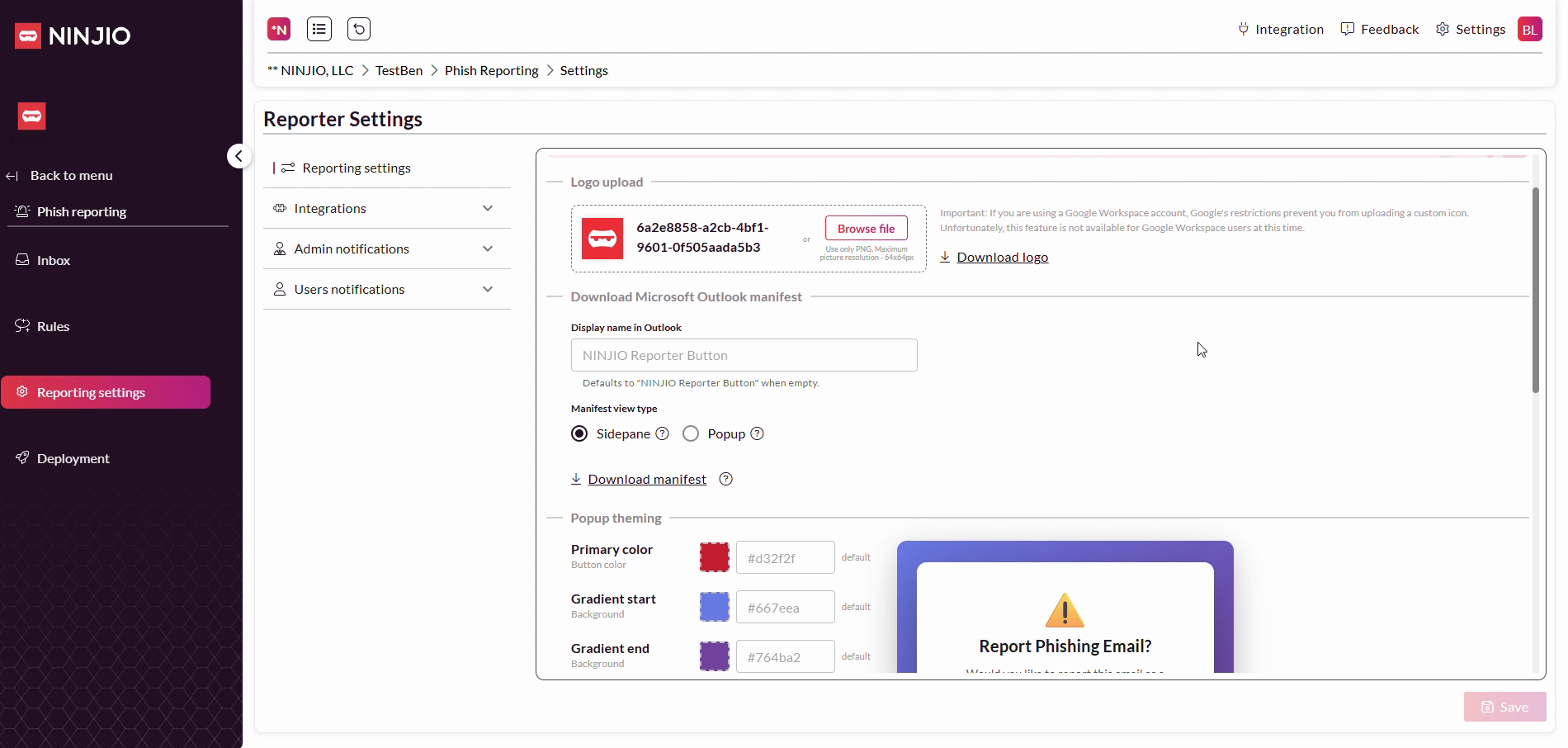
Step 6: After selecting your logo, you’ll see a preview of your uploaded image.
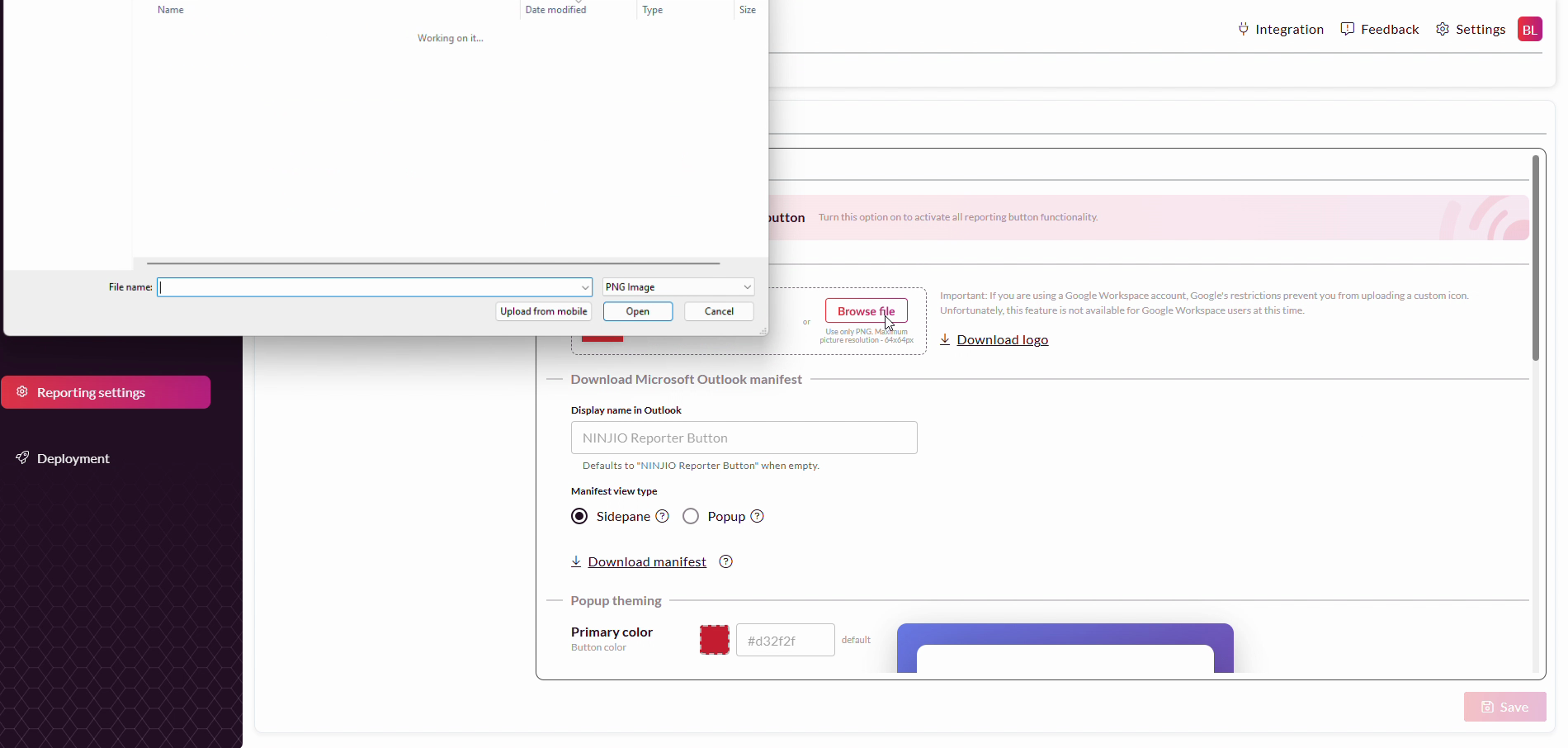
Step 7: Scroll down to the Download Microsoft Outlook Manifest section. Locate the Display name field below.
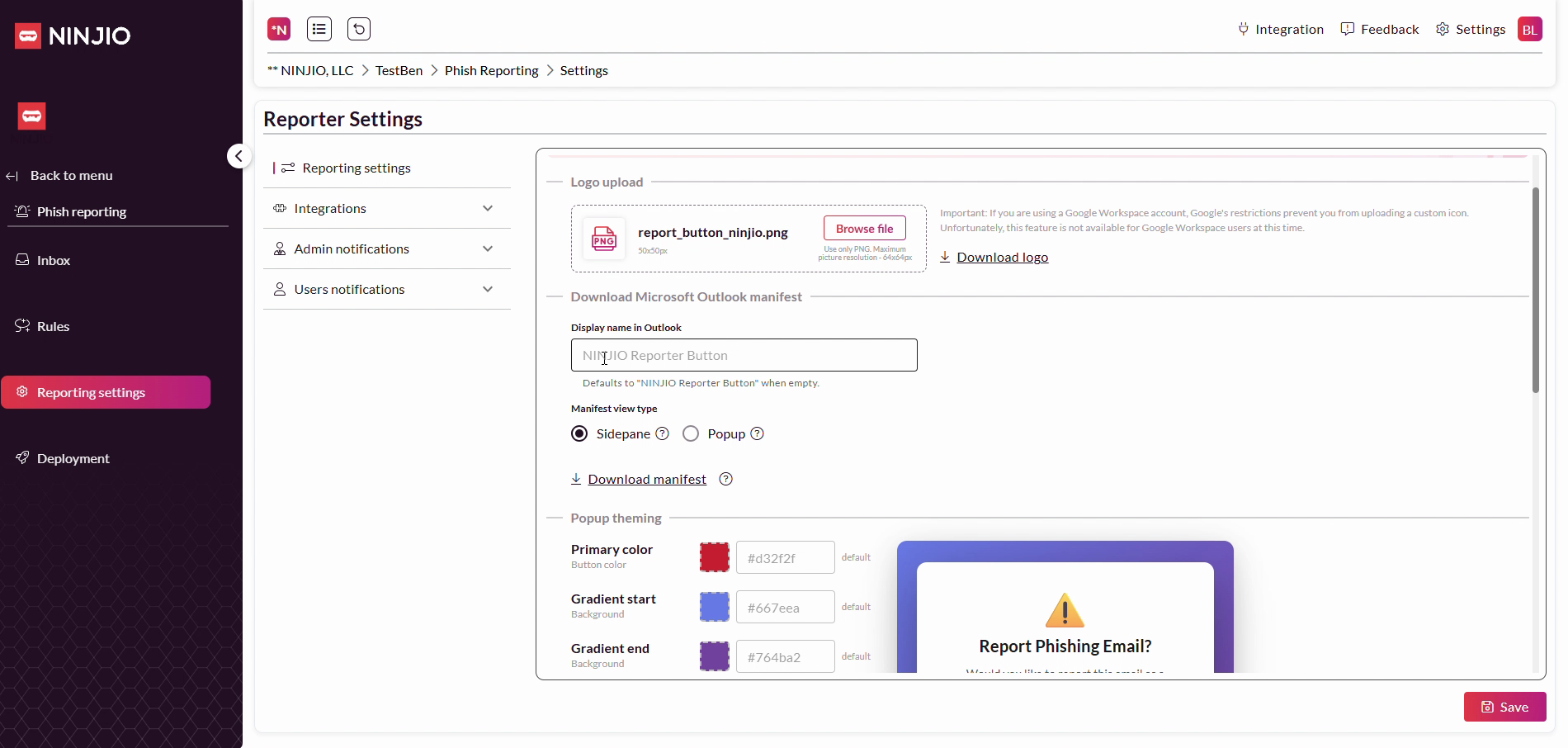
Step 8: Enter the desired display name for your button. If left blank, it defaults to "NINJIO Reporter button." Update it to match your organization or campaign by clicking in the field and typing your new text.
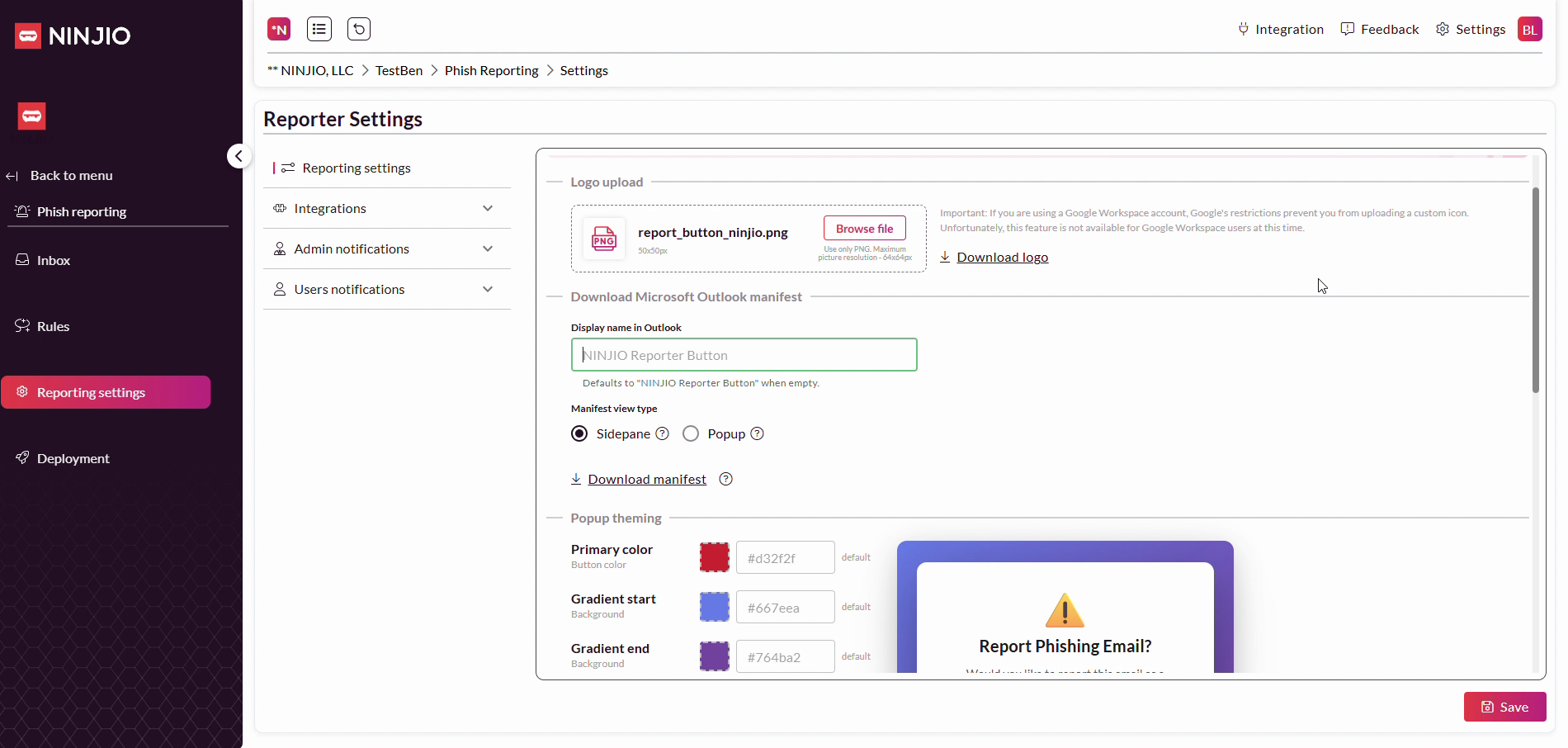
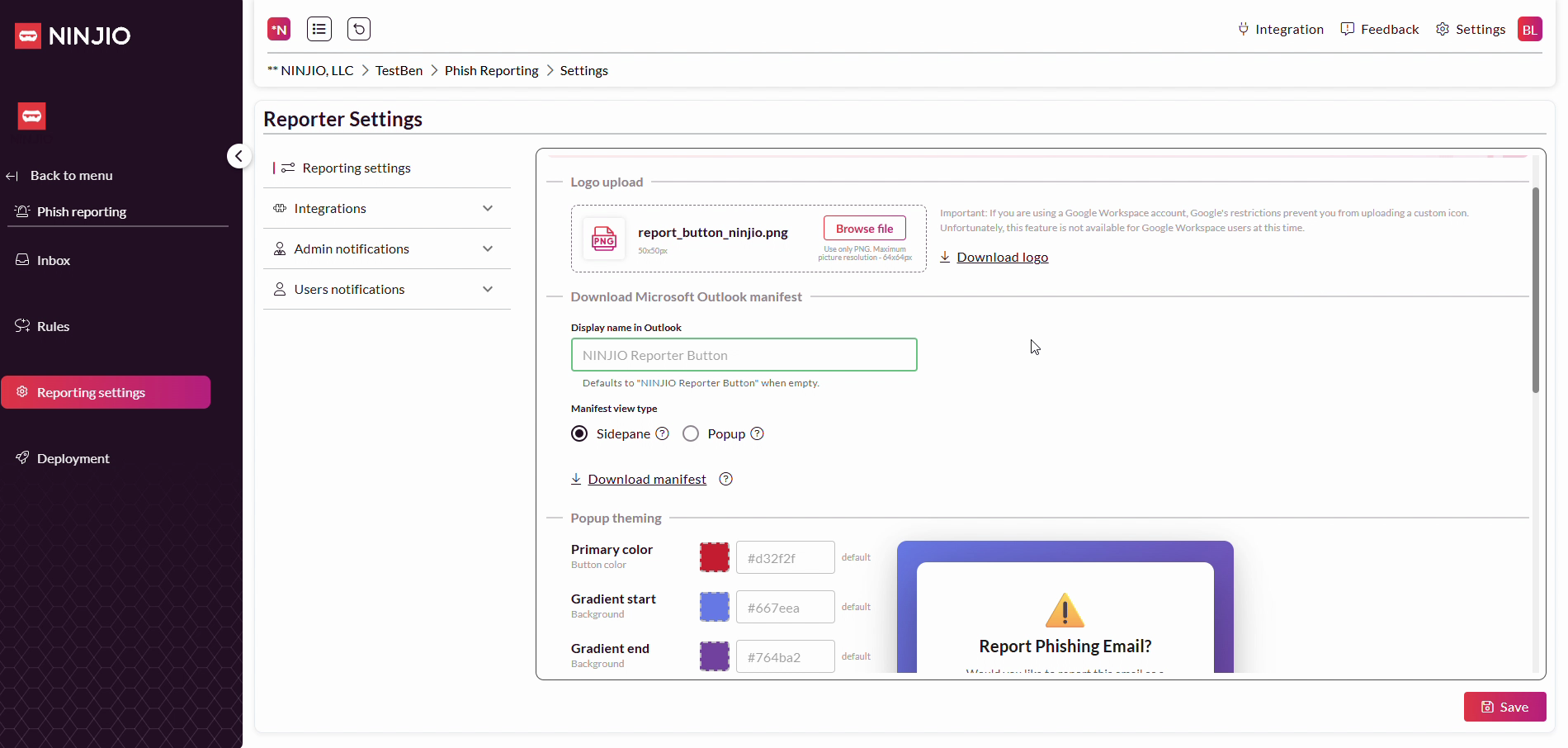
Step 9: Choose the Manifest View Type. Select between Side Pane (opens notifications in a side panel) and Pop-up options, depending on your user experience preference. The side pane mode lets notifications appear within Outlook’s panel, while pop-up mode displays classic notification windows.
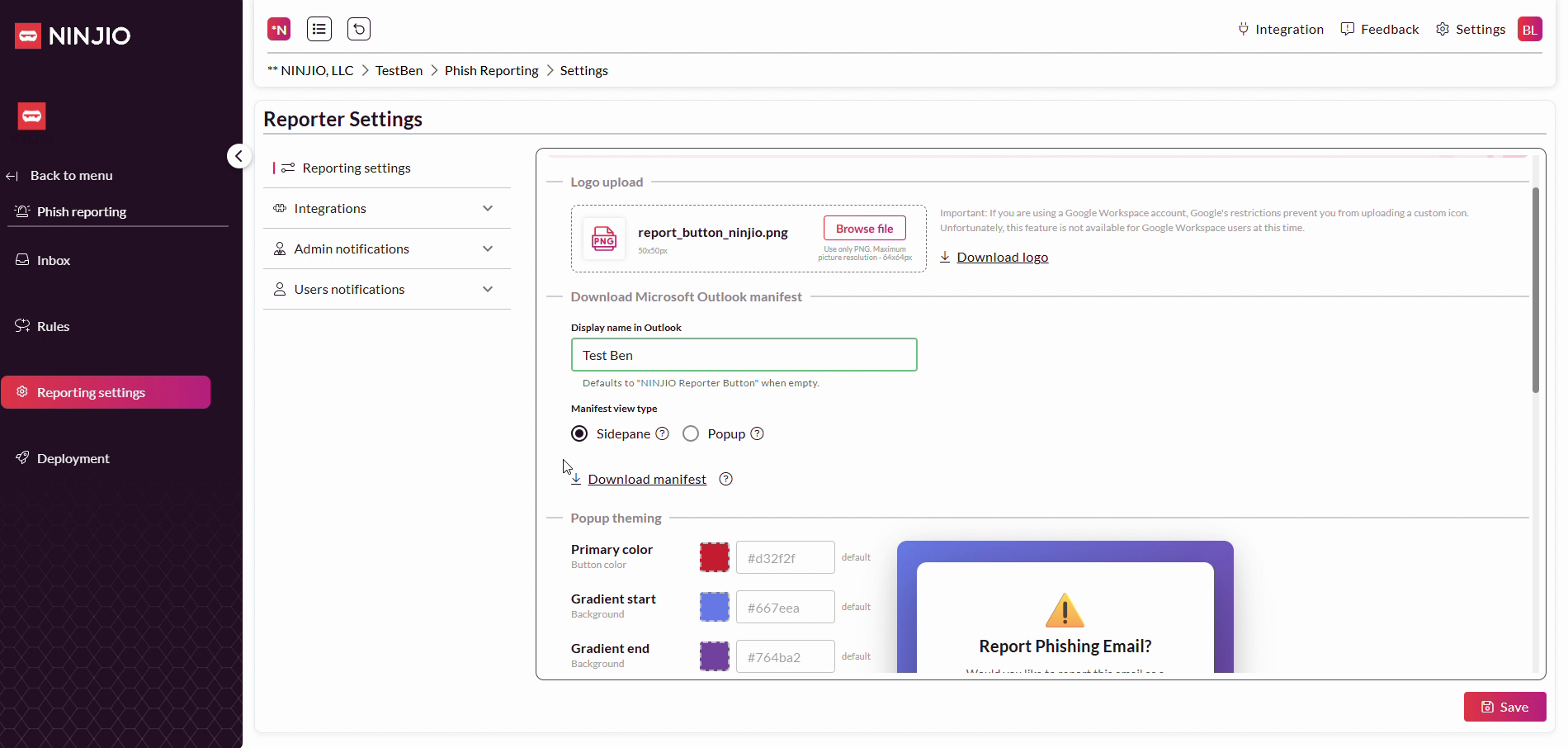
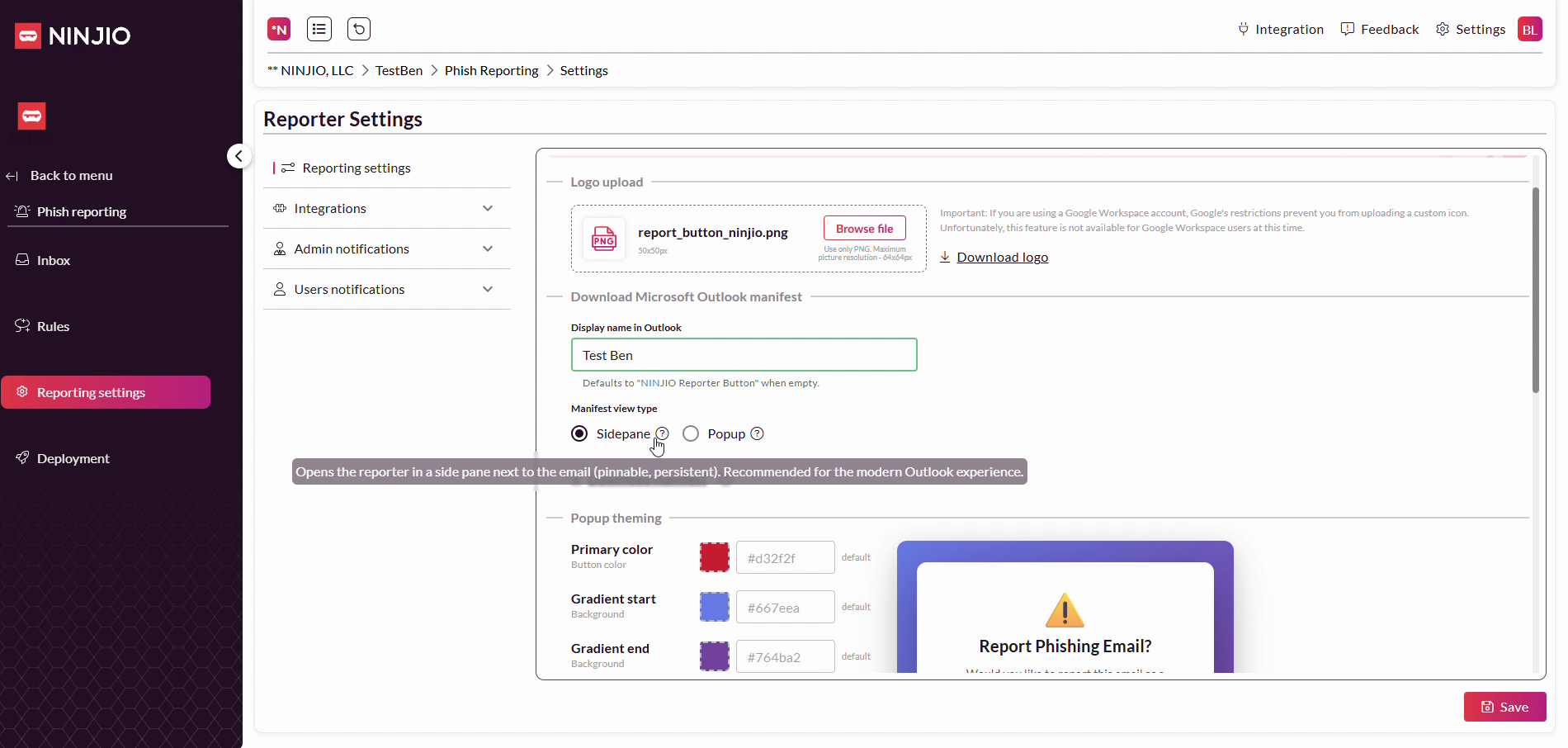
Step 10: Update pop-up theming options. Adjust colors for branding by typing your preferred color codes into the fields provided.
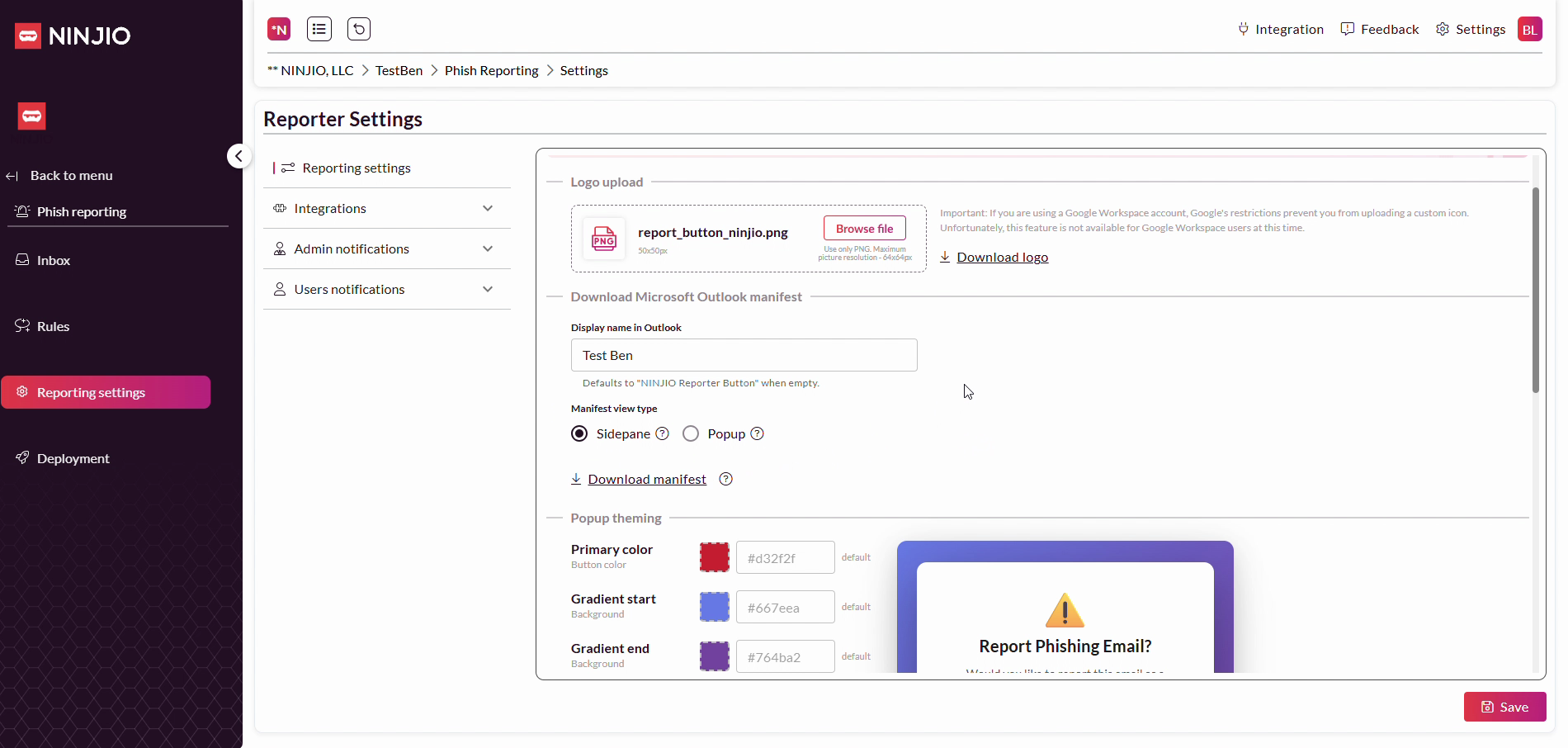
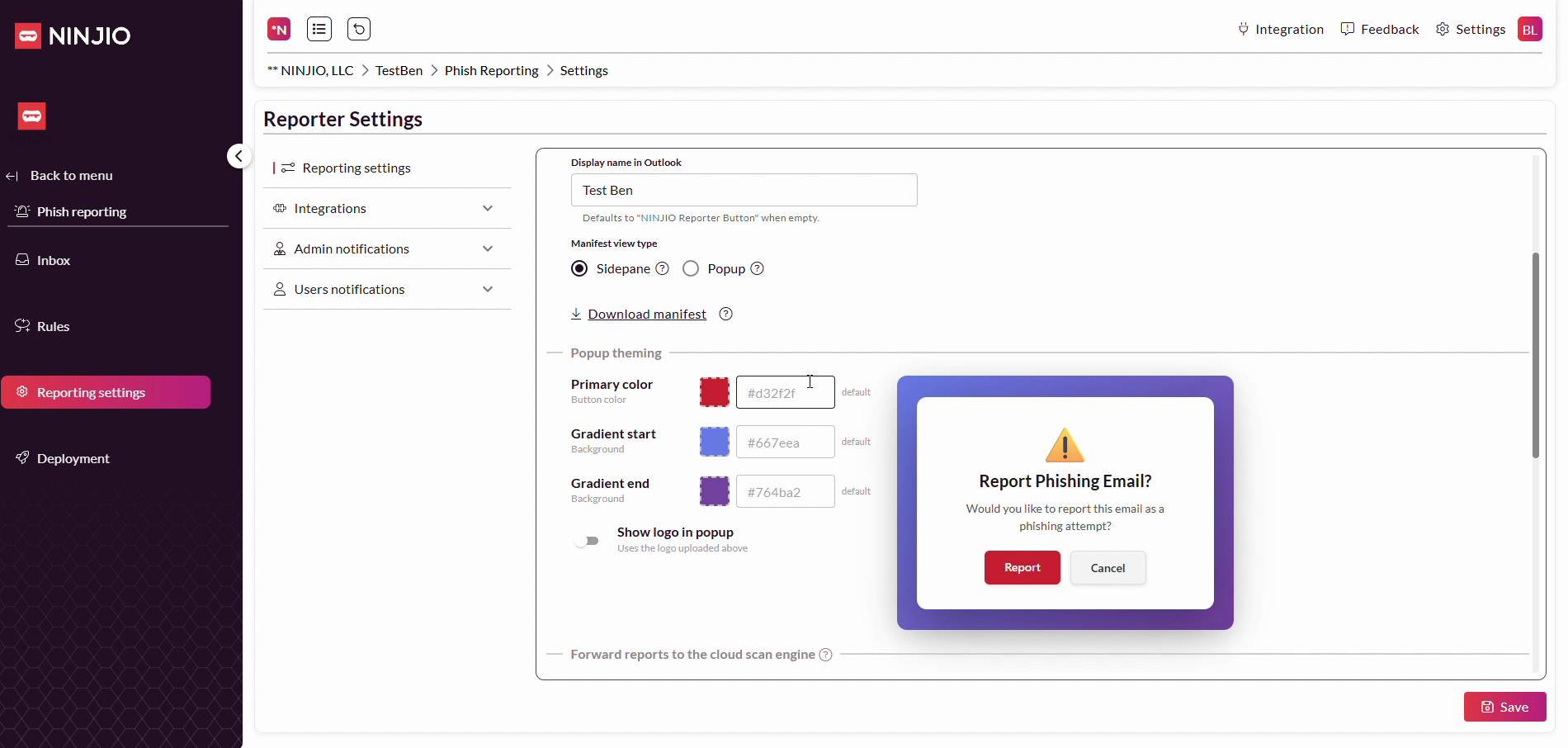
Step 11: Want your logo to appear in the button pop-up? Switch the Show logo in popup toggle to the on position. That places your logo at the top of any pop-up dialog.
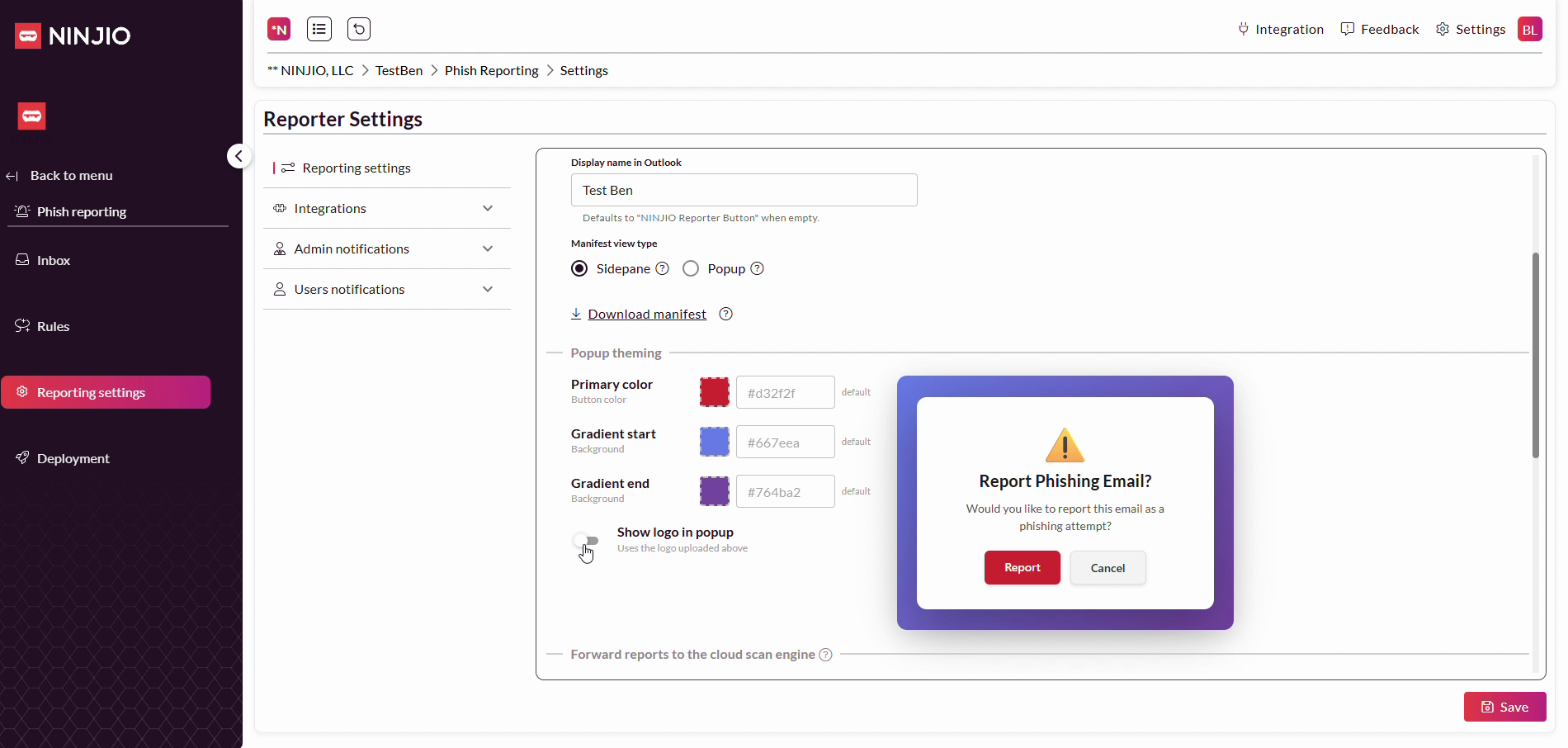
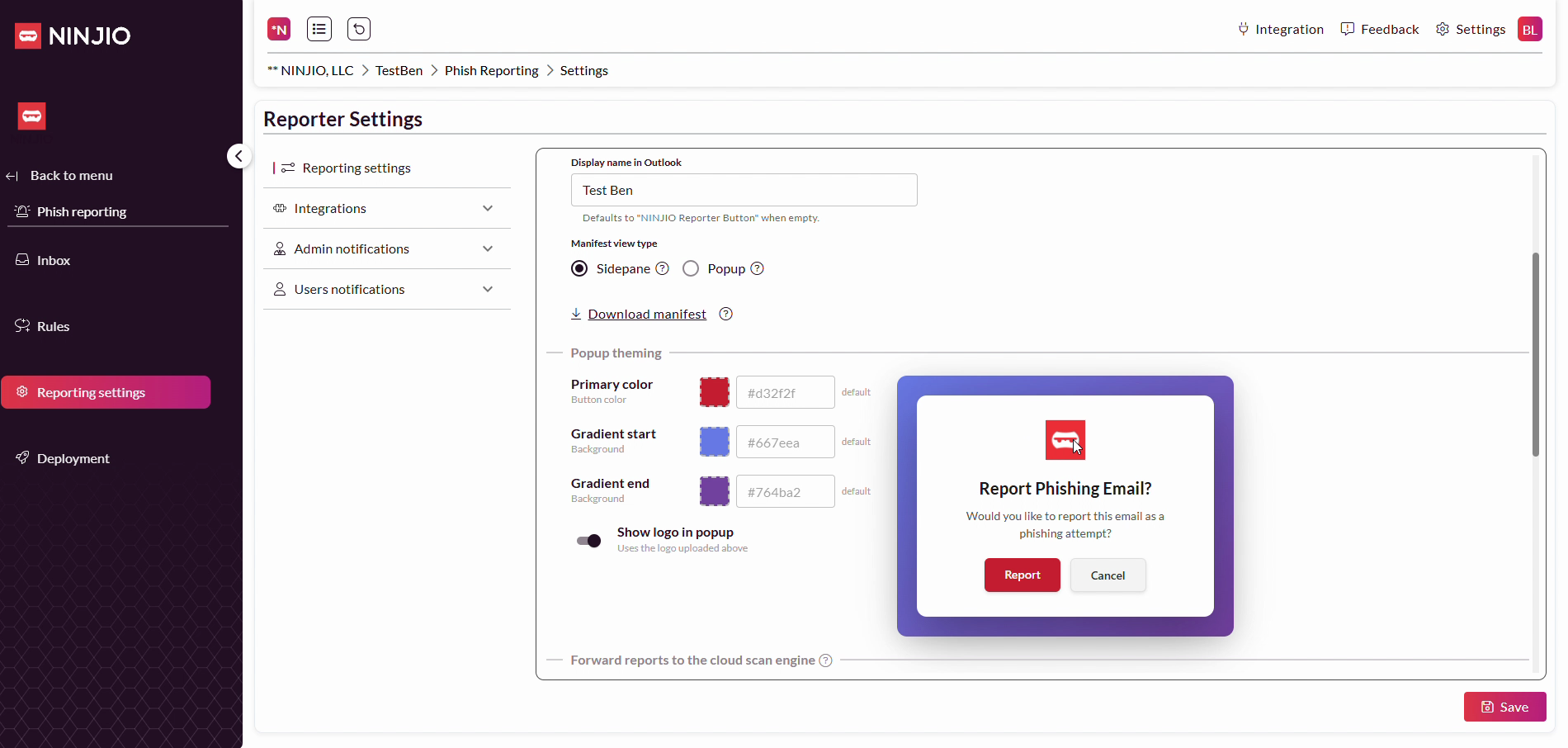
Step 12: Review your settings, then click Save to keep your changes.
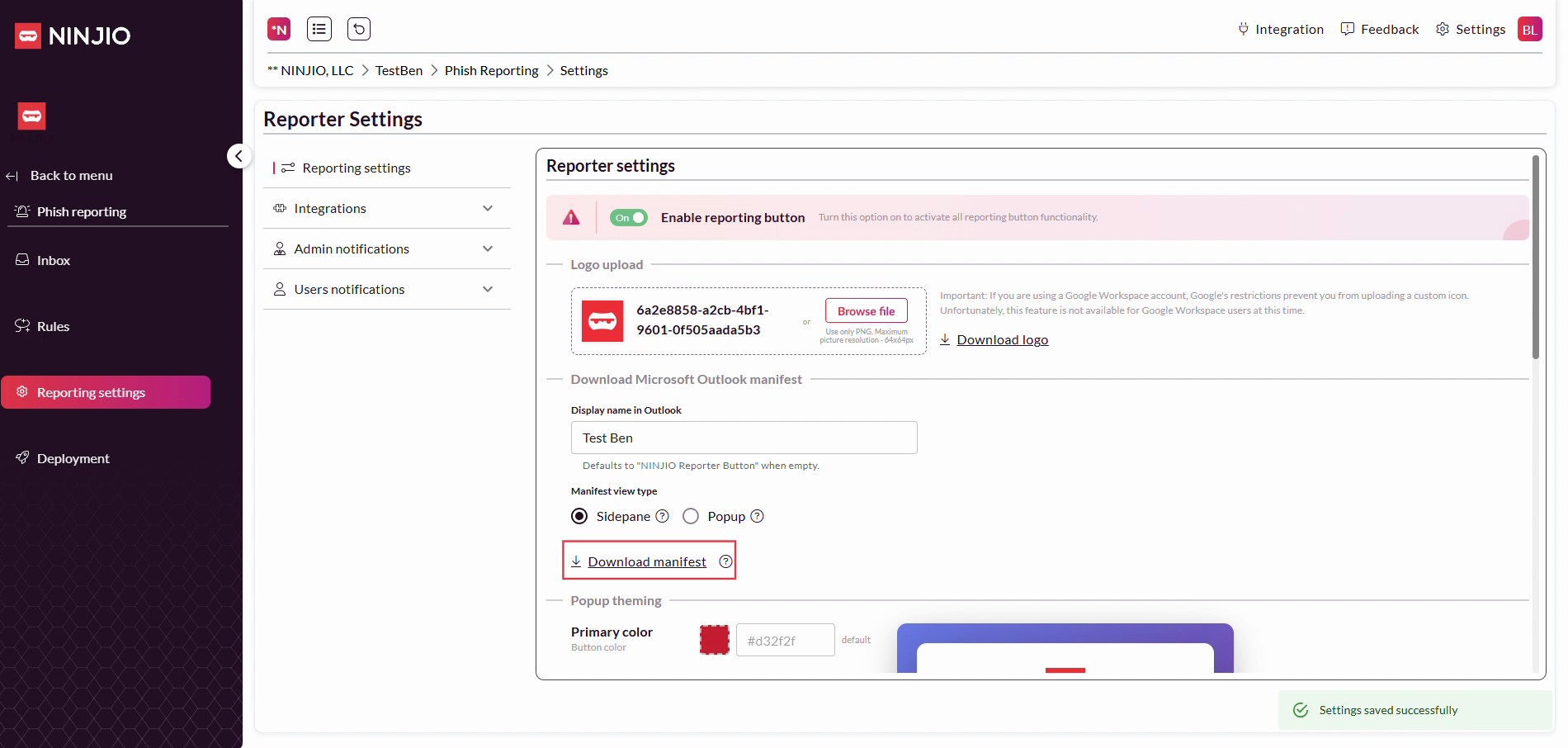
Step 13: After confirming, click Download manifest to export the Outlook Manifest file complete with your custom branding and settings.
You’re ready! Your custom-branded XML Reporter button is now tailored to your organization. For any further questions, reach out to support@ninjio.com.
Comments
0 comments
Please sign in to leave a comment.