Please follow the steps below to integrate the NINJIO platform with the Outlook Reporter button.

1. Within Defender, go to User Reported Settings, make sure the settings below are selected.
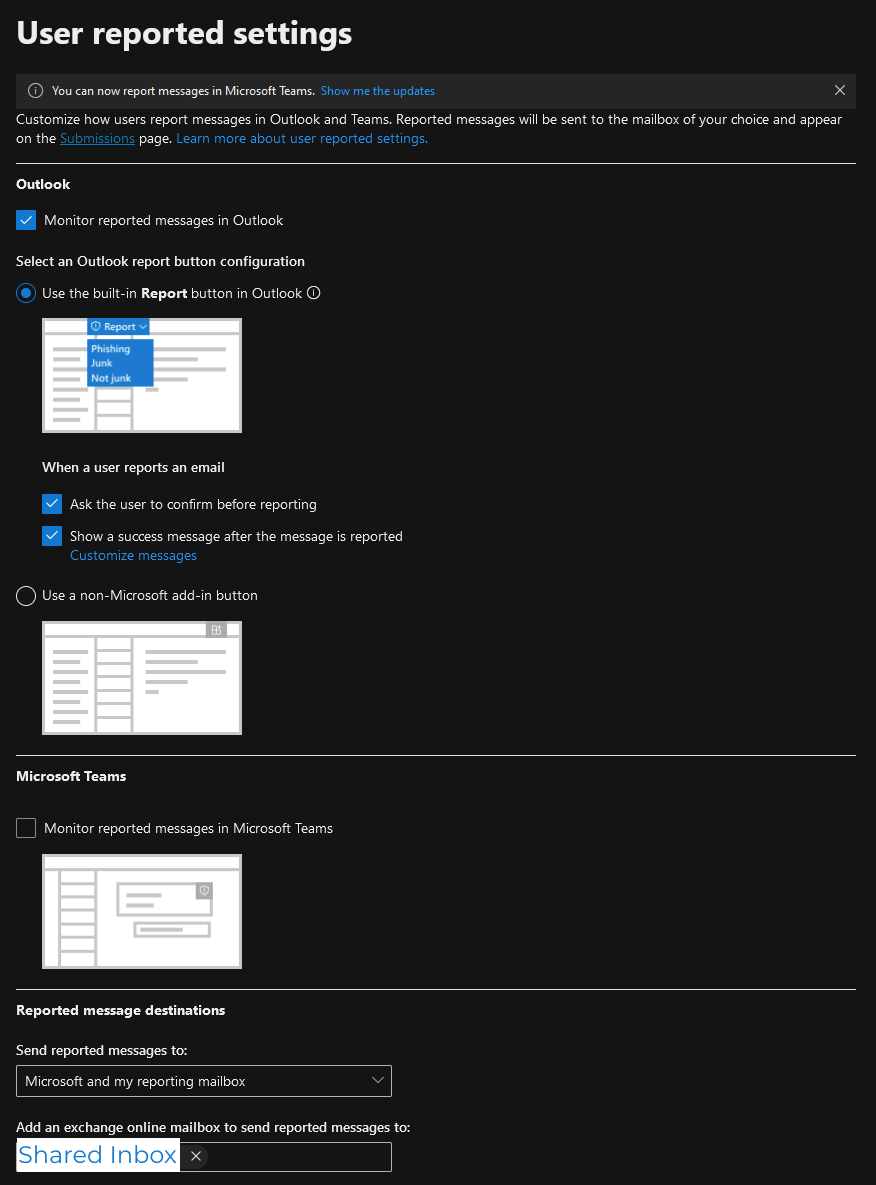
If you do not have one already, please create a shared inbox dedicated to receiving reported emails.
The shared inbox will need to be selected within "Add an exchange online mailbox to send reported messages to:".
2. Create a mail flow rule in Exchange that will direct emails to the platform.
A. Under "Apply this rule if", select "The recipient" & "is this person"
B. For the recipient, select the same dedicated inbox you selected in the previous step.
C. Click the + button on the right of "Apply this rule if" and configure your new condition to have "The subject or body includes any of these words".
You'll need to put our NINJIO SMTP IP(s) within brackets and next to a "client-ip=",
e.g. [1.1.1.1] & client-ip=1.1.1.1
Please see our IPs listed on the Knowledge Center.
After clicking Next:
Comments
0 comments
Please sign in to leave a comment.