General FAQs
Emails are not deleting after I report with the XML based phish reporter button.
We recently pushed an update with the XML button whereby users were only seeing a pop-up when they reported an email without the email actually being processed. If you are observing the issue only occur on Outlook desktop, users may need to clear their cache by deleting all the files in this path:
%LOCALAPPDATA%\Microsoft\Office\16.0\Wef
How do I login? - Administrators:
Navigate to https://admin.goninjio.com/ to access your admin account. Your email is your username, please use the "forgot password" function on first access.
How do I login? - Employees (User Portal):
Navigate to https://landing.goninjio.com/portal/login to access your user portal. Enter your email address and click 'Send Magic Link' to receive your authentication email. Please note the authentication email link is only valid for one hour.
What does "Lured" mean within the reports?
"Lured" is a general term used to describe user engagement on the platform. When looking at the status of a campaign, this metric includes users who opened the email. In the phishing reports, you can alter the meaning of this metric by clicking the "Lured event types" drop down list and selecting different forms of engagement.
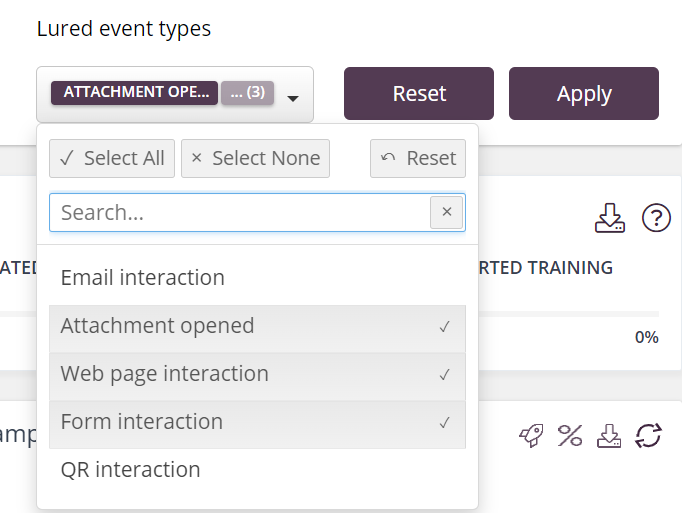
What does each lured event type mean?
Email interaction - The user opened the email. Note: If you are on Outlook, you may need to download images for this to track. Attachment opened - The user downloaded the attachment on the email. Note: They may need to enable content within the document for this to track. Web page interaction - The user clicked the link within the email. Form interaction - The user submitted credentials on the landing page. QR interaction - The user has scanned a QR code on the email.
Do I have to allowlist?
Yes – allowlisting the IPs ensures training/phishing emails will be delivered. When sending out sample simulated phish campaigns, we will simply need to ensure that the approved domains are allowlisted alongside the IPs.
Emails are going to junk.
If you're in M365, perform a message trace and see what sender IP is showing up for the email. If you're seeing the NINJIO IP, please confirm that you have created a Bypass Spam rule in M365. You can find instructions for this process in Part A of our allowlisting guide. If you are seeing a different IP (likely from an email gateway), please confirm that you have created an email connector rule within M365. You can find more information here. You may need to adjust any custom policies in your network to follow a similar process. If you have any questions, please email support@ninjio.com.
Emails are going to Quarantine.
Please ensure that the platforms IP/domains have been added to the advanced delivery policy within M365 Defender (allowlisting guide). Click here for the domains and IPs to allowlist within your security appliances.
Why Are my campaigns stuck in "scheduled"?
Edit your campaign's schedule and confirm that the time range is large enough for emails to go out in a full batch. The Time end should not be the same as the Time begin. 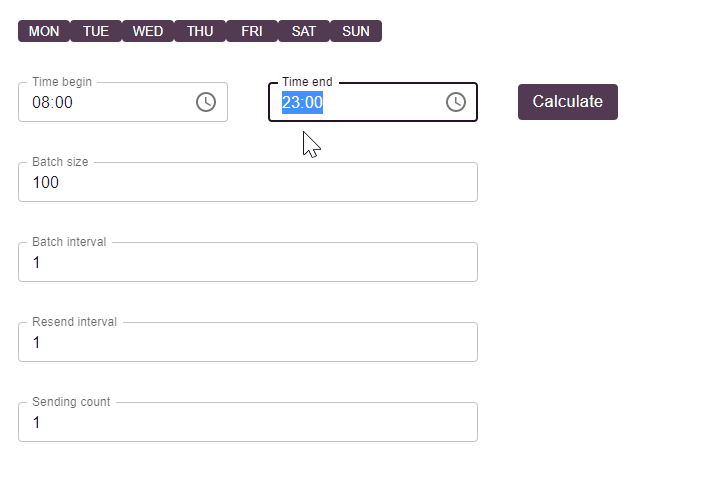 If I choose to sign up as a client, may I customize my content release schedule?
Yes – the PRO subscription allows for content release customization.
SCIM
Can I sync my users in my NINJIO portal using my Active directory?
Yes – NINJIO has the capability to integrate with the following platforms Azure AD/Entra ID + Okta AD: SCIM User Sync Automation
What's the difference between Inactive Employees, Deleted Employees, and Employees without a group?
- Unique Users- Users on the NINJIO Platform have unique IDs and profiles. They can exist within/without a group. The group is used for delivering content to active members. The group may additionally be used by dynamic groups to further filter employee segments and used for targeted content and reporting.
- Deleting Users - Users are deleted using the trash can icon, their training history will be permanently deleted.
- Best Practices - We recommend un-assigning users from the group and deactivating if you need to disable them but also keep their training history intact for compliance reasons. If you’re using SCIM, when users are deprovisioned, it will automatically orphan them from the SCIM group. If you would like your SCIM deprovisioning to also set users Inactive, please email support@ninjio.com.
- Group Deletion – Deleting a group will only remove the group from the platform and not the users.
- Inactive Users – Users who are Inactive will not receive email content from the platform, including training emails, reminders, learner reports, and phishing simulations.
SCIM Troubleshooting
The 5 Basic Troubleshooting Steps for SCIM Integration
Is this a new SCIM integration? (Knowing this can reveal what the potential problems are)
A. If yes, this could indicate there was something that went wrong with the initial setup.
B. If not, then there is another underlying issue.
Confirm the connection between their Active Directory (Azure) and the platform. (Confirm provisioning service is running, test the bearer token is valid)
A. If there is no connection, or the bearer token test fails: provide the SCIM token again, and make sure the tenant URL is correct. This is the same regardless of the tenant. (https://scim.goninjio.com/scim/v2) Are the users assigned to the enterprise application?
A. They MUST be assigned to the application before they are provisioned to the platform. It is best practice to assign a group (or groups) of non-nested users for automation. Users can also be assigned individually. Azure clients can use scoping filters to automate user assignment if groups are not available. Are all the necessary fields entered for the users that are being provisioned to the platform?
A. At least First, Last Name, and email address must be entered in the user’s account.
B. If that info is not in the correct field, then it must be remapped to point to the correct field.
C. Users must also be licensed/active in the IdP.
Is the provisioning service turned on?
In Azure: If it is not on, Provisioning > Edit Provisioning > Status: On. If it is on Stop and Restart the service.
What is the difference between Pass/Fail vs Completed?
An End user can officially complete a training just by viewing the content and taking the quiz. Pass/Fail involves the scoring of the concluding True or False Quiz summarizing the teachable moments. The scoring is as follows: 1. If you answer the quiz correctly on the first try, you get 100% for 3 points
2. If you answer the quiz correctly on the second try, you get 75% for 2 points.
3. If you answer the quiz correctly on the third try, you get 50% for 1 point.
4. After the third try, no points will be awarded, but you still must answer the quiz correctly to receive your completion credit. 50% is still considered a Pass.
Users have 5 pass/fail attempts for each episode.
Why didn’t I get a certificate for my PCI training?
The end users do not receive certificates of completion from PCI Trainings because those quizzes are not graded.
What subscription level of NINJIO do we need for uploading SCORM? NINJIO PRO
I am unable to launch content to certain email addresses.
The NINJIO platform is programmed to only launch content to authorized email domains for security purposes. If you would like to update your restrict email list, please reach out to support@ninjio.com. NINJIO cannot send directly to public domain mailboxes such as gmail.com, yahoo.com, msn.com, etc. If you have employees who need content delivered, they will need a corporate email account through your company. If you have questions how to manage users with public emails, please email support@ninjio.com.
Emails will not show up in my inbox. Make sure you follow our essential allowlisting guides prior to onboarding. Click here to see our most up-to-date list of IPs and domains.
How does NINJIO deliver emails? NINJIO uses dedicated SMTP servers on SendGrid and Mailgun. SendGrid and Mailgun do not share these IPs with anyone else. All IP addresses belong to the platform and can only be used by authorized users in the platform by way of credentials and IP allowlisting. Please have a look at SendGrid’s dedicated IP documentation and Mailgun’s dedicated IP documentation for more information on our dedicated IPs. Further, companies are only authorized to send phishing/training emails to their own permitted email domains that NINJIO authorizes on behalf of each client during the onboarding process.
I'm getting an error when importing a user spreadsheet.
CSV spreadsheets must be formatted correctly for import. Errors may occur if the spreadsheet isn't formatted properly. We recommend saving your spreadsheet in CSV UTF-8 format. If you're still seeing errors, make sure the phone numbers column contains only numeric values then try again. If you're still having trouble, please reach out to support@ninjio.com.
AWARE
Why can’t I add certain users to the platform?
Admins are prohibited from adding users to the platform unless the domain has been allowlisted. Make sure the user's email address has an authorized domain.
Why is my training link not working?
If you’re experiencing any issues with your training link, we encourage you to try these basic troubleshooting steps:
1. Clear your web browser's cache
2. Troubleshoot on another web browser/device
3. Confirm that you have an active network connection
4. Restart your device
5. Confirm that your browser is up-to-date If you have followed these steps and the issue persists, please get in touch with support@ninjio.com for further assistance.
How to download/schedule reports in Dashboard?
You can configure, export, and schedule reports from the Enhanced Training Dashboard or Enhanced PHISH3D Dashboard.
How does our gamification work?
Our point system is based on how quickly users engage in the training and how well they do on the exam. Here is a breakdown of our points system:
Engagement Breakdown:
View course within 24 hours = 2 points
View course within 72 hours = 1 points
View course after 72 hours = 0 points
Exam Breakdown:
Complete quiz on the 1st attempt: 100% = 3 points
Complete quiz on the 2nd attempt: 75% = 2 points
Complete quiz on the 3rd attempt: 50% = 1 points
Any attempt after will result in 0 points and a “Failed” course.
Why are users showing up in the reports even after they have been removed from the target group?
The Dashboard reflects the all-time training history for users who have existed in the tenant. To remove a user’s history permanently, you will need to delete them from the platform within the User Management module.
PHISH3D
How do I Launch a phishing campaign? Launching a phishing campaign is really simple! The video below will walk you through the process of administering the phishing simulator on the New NINJIO Platform.
How do I launch remedial training to users who failed a phishing simulation?
7. Now you can go to Campaign Management - Training to launch the training. 8. Follow our instructions on launching training to the users but this time you'll need to select Dynamic Groups to find the new group you created.
Why are my emails going to junk? Confirm you’ve completed the allowlisting process. Here are some more extra steps that you can take to help prevent false positives:
Verify the user's Outlook Junk Email Filter settings:
- Verify the Outlook Junk Email Filter is disabled: When the Outlook Junk Email Filter is set to the default value No automatic filtering, Outlook doesn’t attempt to classify messages as spam. When it’s set to Low or High, the Outlook Junk Email Filter uses its own SmartScreen filter technology to identify and move spam to the Junk Email folder, which may result in false positives. Note that Microsoft stopped producing spam definition updates for the SmartScreen filters in Exchange and Outlook in November of 2016. The existing SmartScreen spam definitions were left in place, but their effectiveness will likely degrade over time.
- Verify the Outlook ‘Safe Lists Only’ setting is disabled: When this setting is enabled, only messages from senders in the user’s Safe Senders list or Safe Recipients list are delivered to the Inbox; email from everyone else is automatically moved to the Junk Email folder.
- Use the available safe sender lists: For information, click here.
- Verify that users are within the sending and receiving limits as described here. For more details on configuring anti-spam policies in Microsoft 365/Exchange, click Receiving and sending limits in the Exchange Online service description.
What security does NINJIO use for SMTP servers?
We use MailGun as our SMTP server solution.
How often should I launch a campaign?
The industry standard is once a month, although you can launch them at your convenience.
How do I target repeat offenders?
You can create dynamic groups to target users who failed a simulation.
What if the user claims they didn’t click? We encourage admins to run a regulated test in real-time with the user. Try and simulate the same environment as much as possible to observe the reports' behavior.
Why are the simulated phishing emails going to junk?
Simulated phishing emails will go to junk if the IPs aren't allowlisted properly.
If you have an email gateway like Barracuda or Proofpoint, the IPs in the email header might be rewritten by the gateways.
Check the header of the email going to junk and see if the sender IP is one of the NINJIO IPs.
How frequently should I run campaigns?
It is common for clients to run campaigns once a month or quarterly at least.
Do phishing campaigns store/collect passwords?
NINJIO does not collect sensitive data like passwords or documents as part of the phishing campaigns.
I want something specific that is not in your template library.
We are always open to suggestions! Send your feedback to support@ninjio.com and we will do our best to incorporate your ideas into our templates!
If a user responds to a phish email, where does it go? The response will be sent to the from address of the email template.
My phish campaigns will not launch.
Please confirm that the end user’s email address is not from outside the organization. Reach out to support@ninjio.com so we can authenticate the domains before launching campaigns to them.
Why are there false positives?
The New NINJIO Platform utilizes an Udger database system that filters out known IPs and agents from the reports. If you still believe that the false positives are legitimate, please confirm that the sender IPs and domains have been allowlisted on all security layers within your organization. This includes email gateways like Barracuda, Mimecast, Proofpoint, etc. If emails are not allowlisted properly, false positives may occur after a user reports a simulated phishing email. We also encourage you to run a test campaign to see if you receive any false positives. If you have any questions, please reach out to support@ninjio.com.
Can the phish reporter button deploy to a shared inbox?
No, the PHISH Alert button is not currently compatible with Shared mailboxes. The new NINJIO platform uses the button to notate which users reported a simulated phishing email.
DKIM
The NINJIO platform features a robust security policy. This includes requiring DKIM signatures for any platform emails sent using your domain as the mail sender. DKIM prevents spoofing of your domain from the platform and tells your mail server that platform mail server is allowed to send messages from your domain. The authentication happens behind the scenes, between receiving mail servers and your public DNS records. To enable DKIM for your domain, please refer to your document for the CNAME records to publish on your DNS. Once you have published these records, please let us know so that we can validate and finalize the DKIM authentication. If you would like to use your own domain to send email or you no longer wish to use your domain as the sender, please reach out to support@ninjio.com.
How do I launch remedial training?
There are two ways to enroll failed users into remedial training. The first, and easiest way to enroll users into remedial training is by selecting an episode during the campaign creation process. 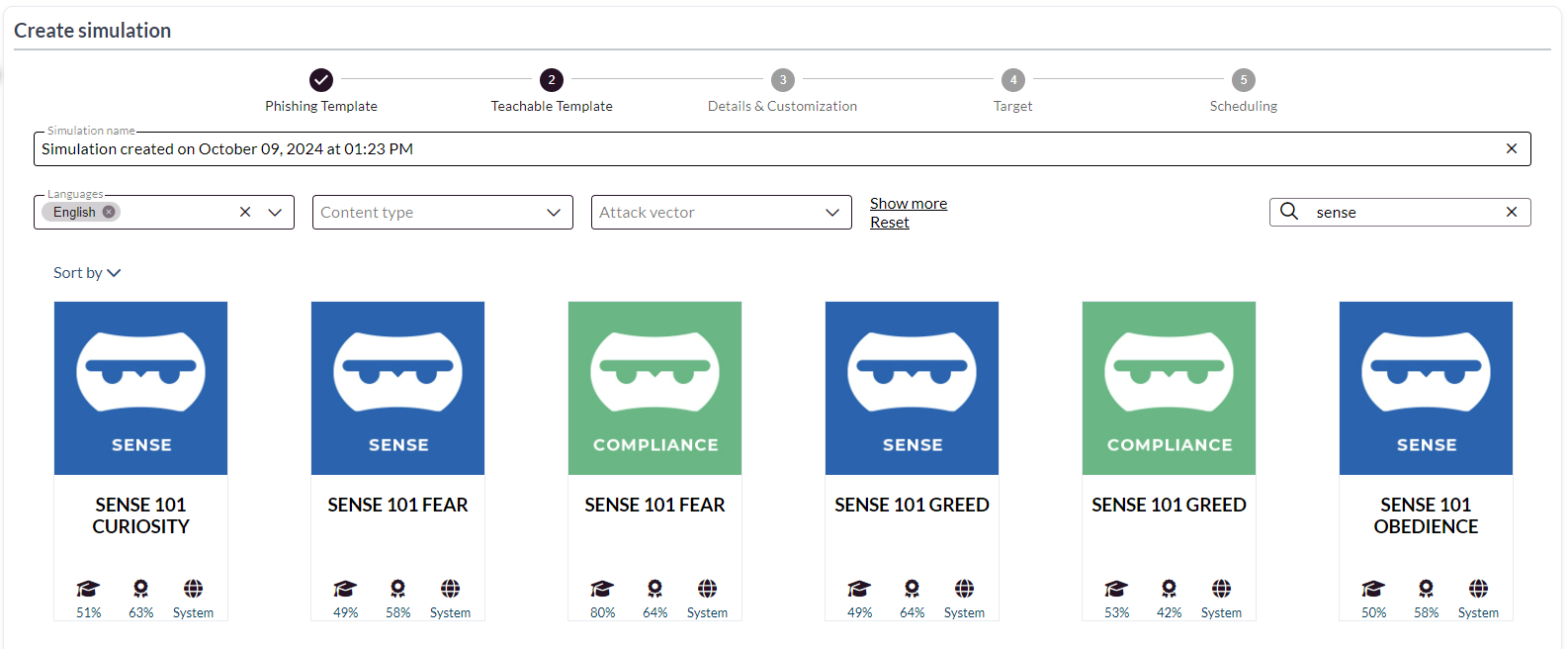 When you reach the "Teachable Template" step of the campaign creation process, select the episode you would like the failed user to be redirected to. We generally recommend a NINJIO SENSE episode with the corresponding emotion. If you are launching a simulation and not a smart campaign, you'll need to remove the silent page from the simulation workflow.
 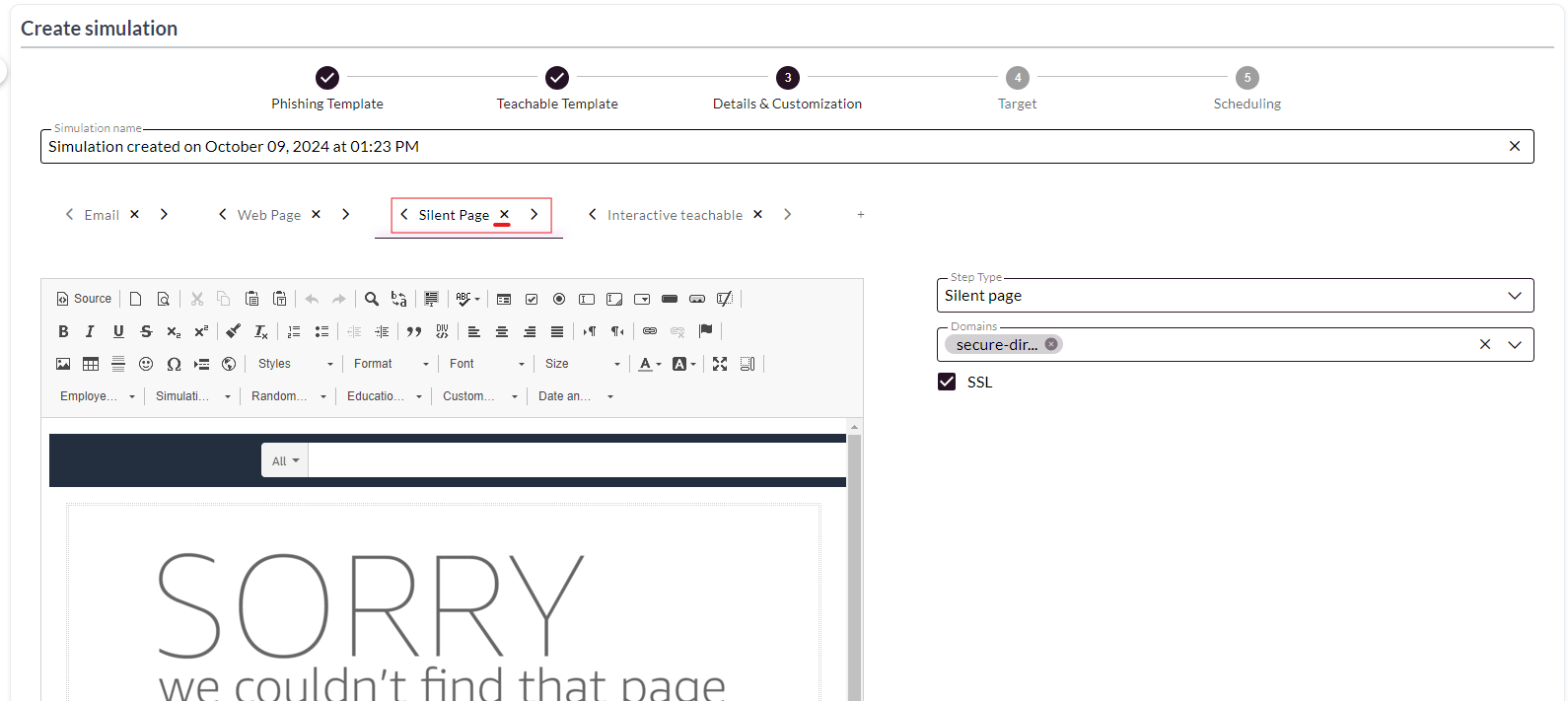 With this, users who fail the simulation will be redirected to the episode immediately after they fail. While this method is not recommended, it is the simplest way to enroll users into remedial training. The second way involves the creation of a dynamic group. You can find our instructions on launching via dynamic group here: https://demo.ninjio.com/share/wuaufdgom2df If you'd like users to be enrolled automatically after the campaign is created, you'll need to follow the steps below:
1. Create your PHISH3D campaign.
2. Create a dynamic group and select your PHISH3D campaign. 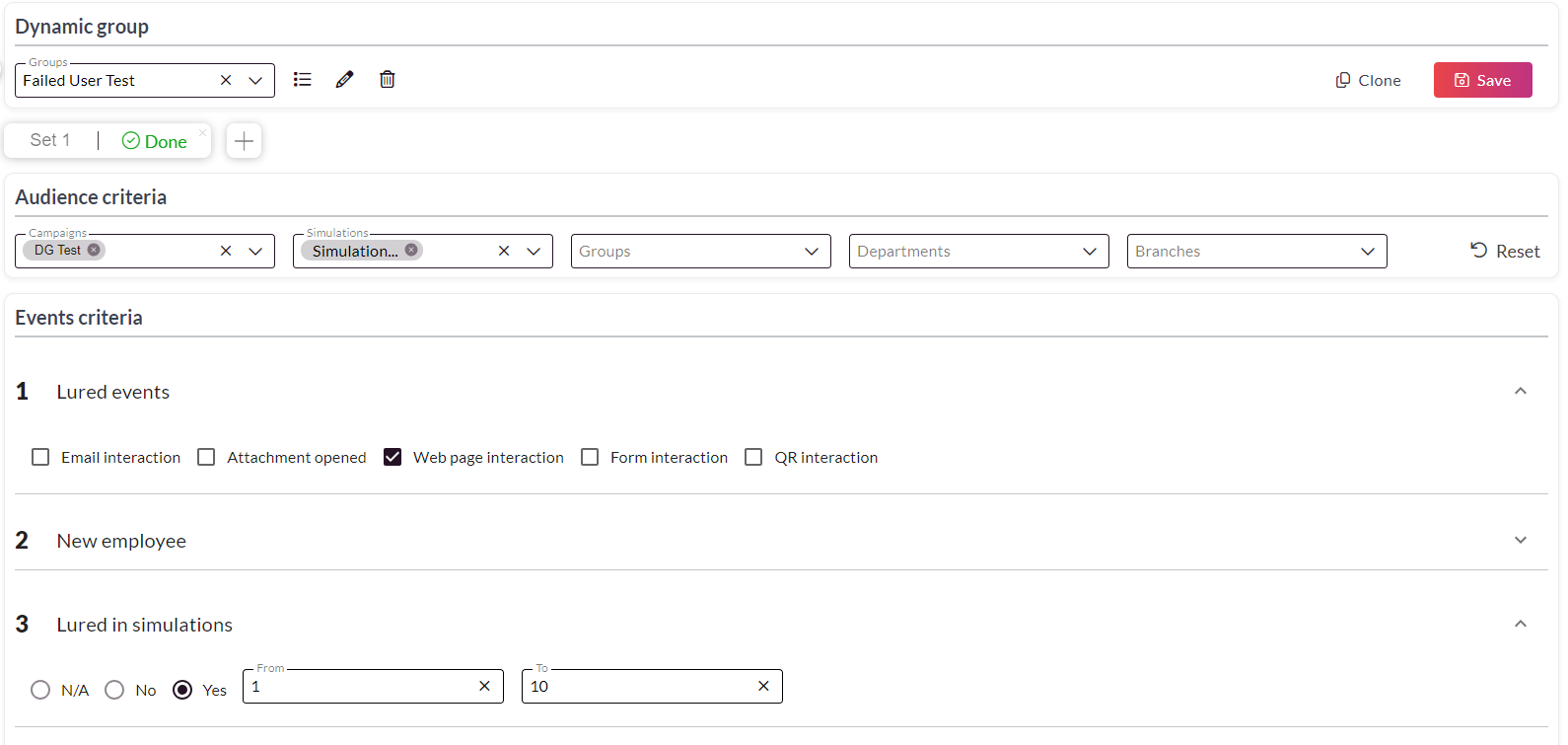 And save your changes. You should not see any users in your new dynamic group.
3. After you created your dynamic group, go ahead and create a smart training campaign, select your episode of choice, select yourself (the admin), and proceed with the campaign creation.
4. Once the campaign is created, edit your training simulation and change the users from the admin to the new dynamic group that was just created. You might want to change the body of the training to have the users know they were enrolled into this training for failing a phish campaign. 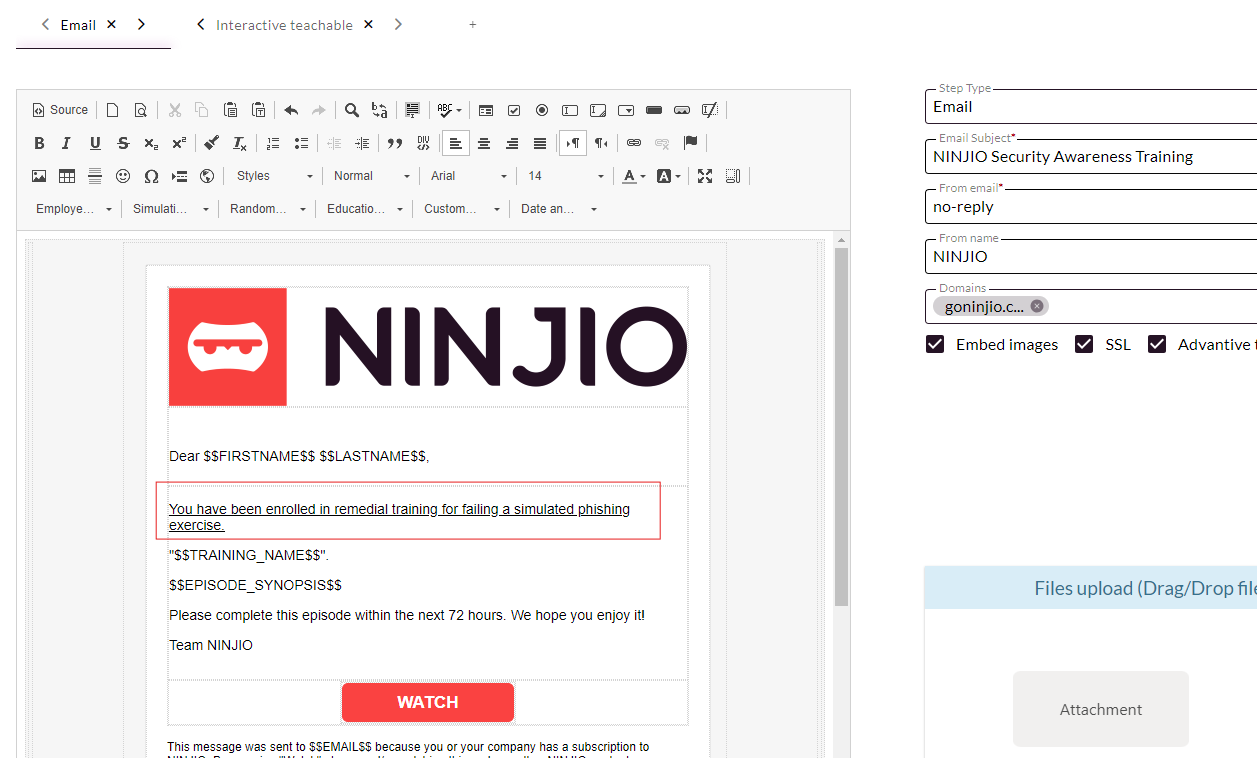 5. Launch the training.
6. Failed users will now receive training emails from the auto-enrollment process. If you have any questions, please reach out to support@ninjio.com.
Comments
0 comments
Please sign in to leave a comment.