CUSTOMIZING PHISH3D TEMPLATES
You can modify existing templates on the platform by following the steps below.
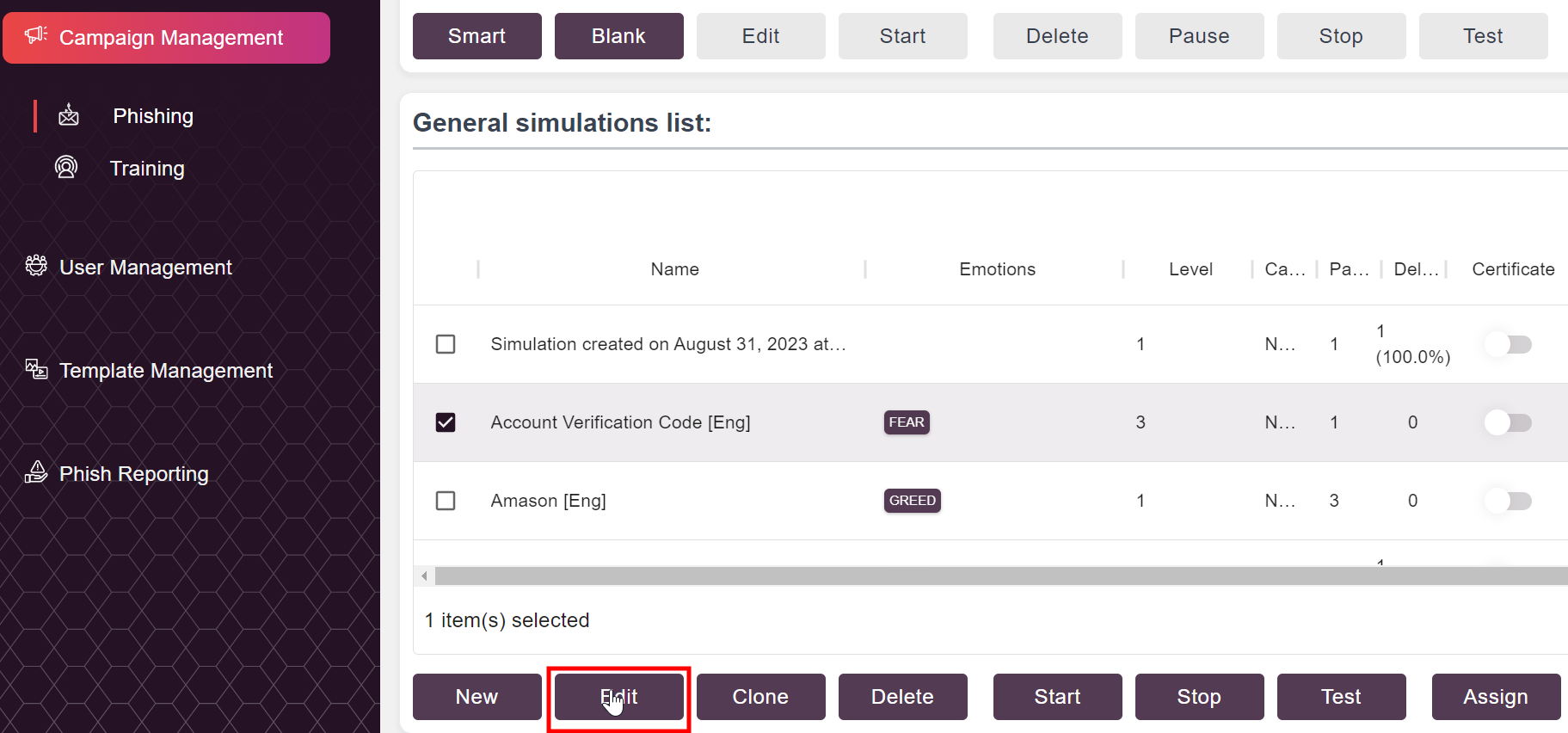
1. Select Campaign Management, Phishing, Select an existing simulation, and click edit.
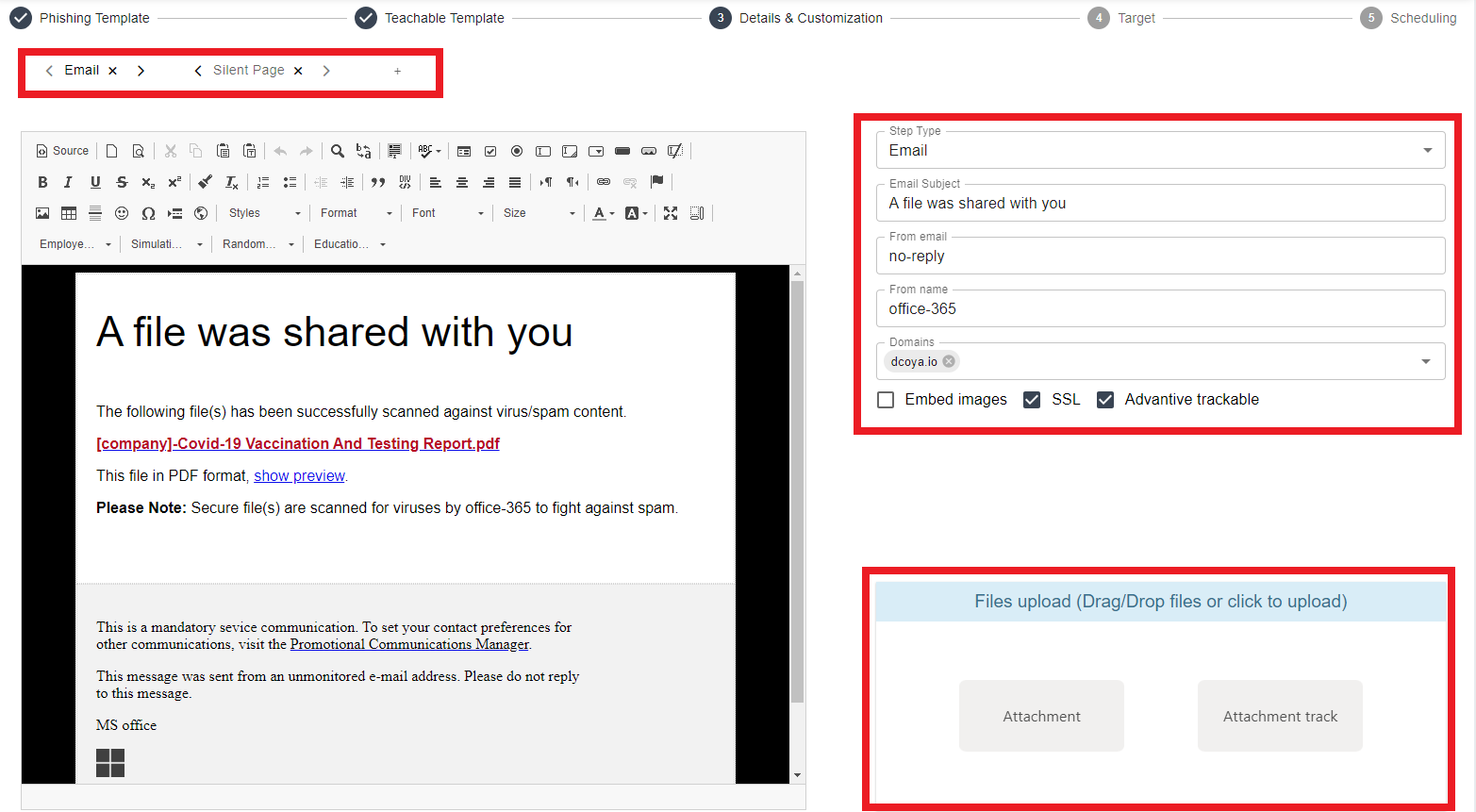
2. In the Details & Customization page, you can update information in the Email Subject line, From Email (before the @), and From Name. You also can edit the domains associated with the template and enable SSL, Embed images, and upload attachments files. If you need to make other modifications, such as to the Interactive teachable and the Silent page, click the tabs to view the menu options. Once all is confirmed, hit “Next” until you're back in Campaign Management.
3. Once your back in Campaign Management, click the "Save Template button", type in a name, click save, and your modified template will be saved within your tenant's template library.

MAKING NEW TEMPLATES FROM SCRATCH
To create a new template based on an existing email, please follow the steps below.
It is generally recommended not to use Smart Campaigns for this scenario.
1. Instead, create a new simulation.
2. Select the Blank template.
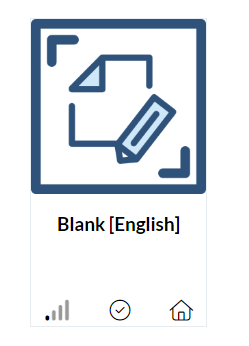
3. If you'd like to select training, you can do so. Otherwise, scroll down and click Next.
4. You can make adjustments to all components of the Details & Customization page.
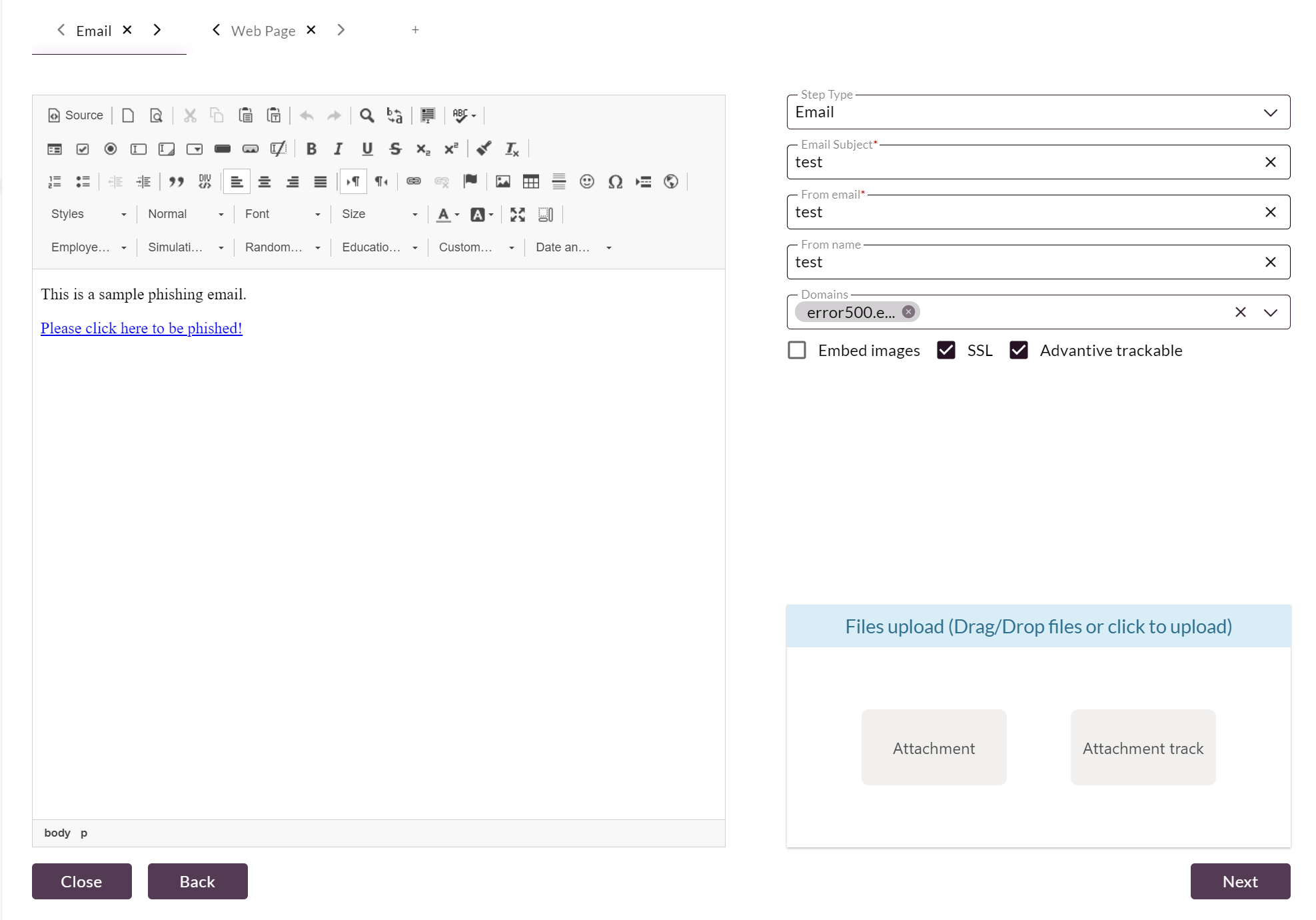
5. If you want to use an existing email as a template, you can get the source code through the steps below.
Note: It is highly recommended that you do not use real phishing emails for reference as there is major security risks involved in this method.
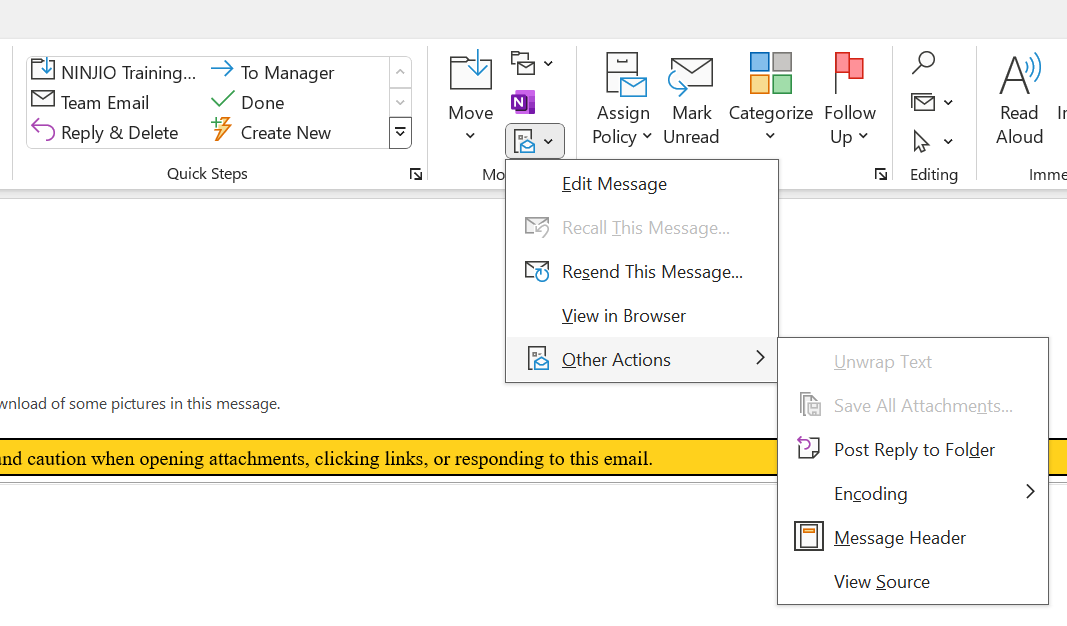
How to open email source code in Outlook.
A. Double-click email to open it in its own window
B. Find "Actions" at the top
C. Click "More Actions" > "View Source Code"
D. It will open in its own text file window.
How to open email source code in Gmail
A. Open the email you want to view
B. Select the three-dotted menu in the top right corner of the email
C. Select Show Original
D. A new tab or window will open with the email's source code
6. If you are using an existing email, please ensure that all hyper links direct to $$URL$$ with a protocol of "other".
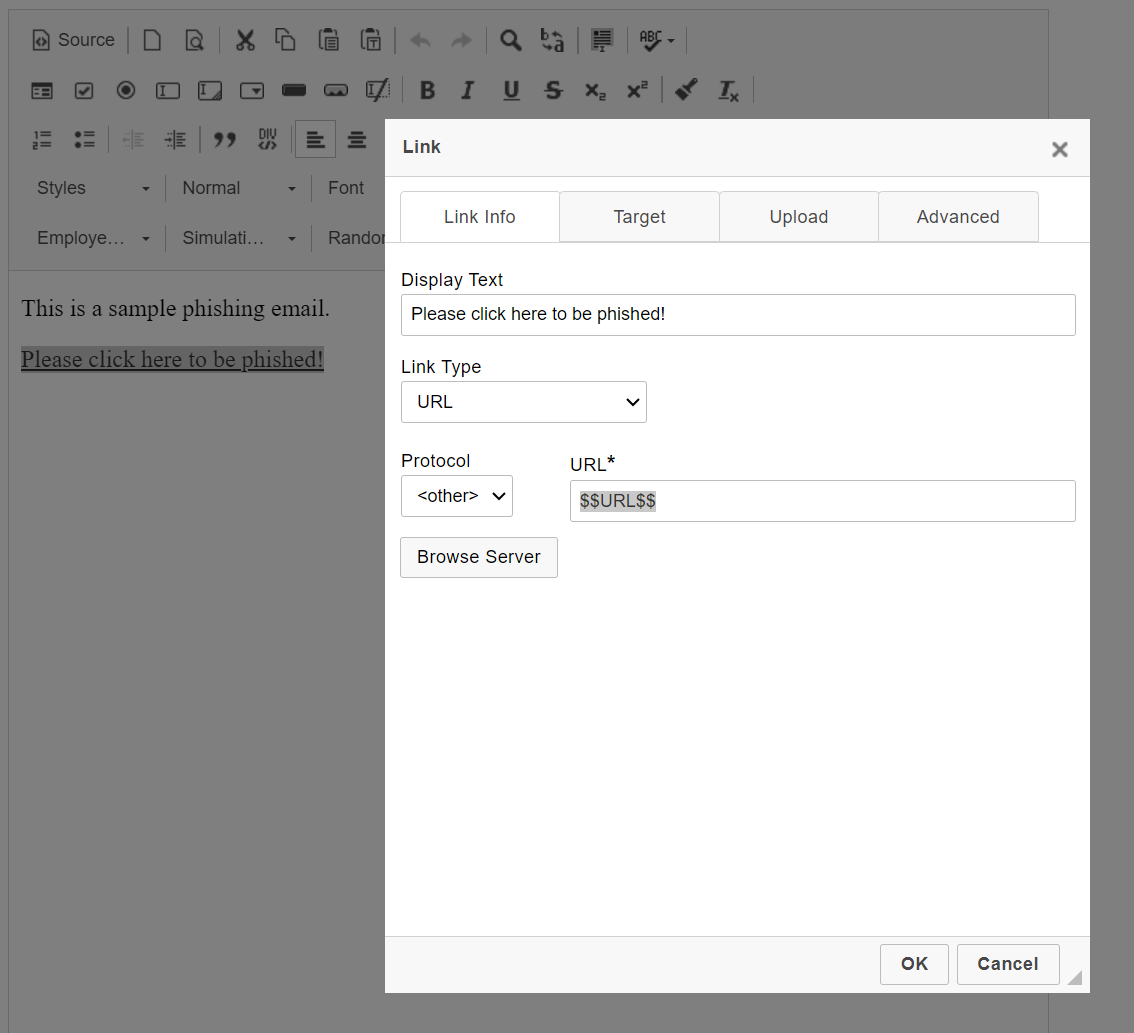
This applies to all hyperlinks within the email.
7. Once you're done customizing the email, click on the Web Page tab to make adjustments to our custom web page template.
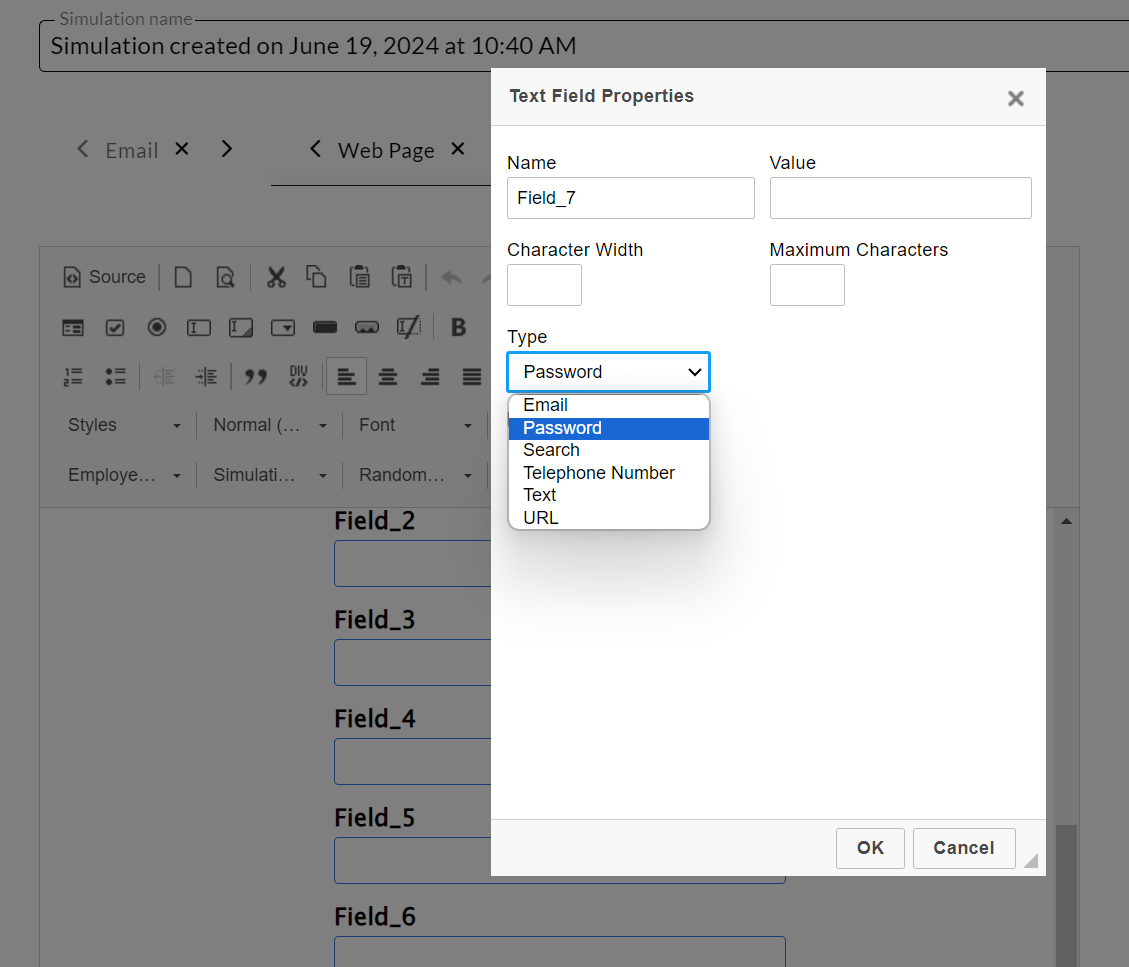
8. If you want one of the fields to capture a password, please update the field type to do so.
If you have any questions, please reach out to support@ninjio.com.
Comments
0 comments
Please sign in to leave a comment.