Set Up Microsoft 365 DMI
Connect Microsoft 365 DMI to your admin portal in just a few clicks. This guide walks you through authenticating, approving permissions, and cleaning up your domain list. It also shows you how to disconnect when you need to.
Important: Only a Microsoft 365 Global Administrator can connect. Anyone else won't be able to complete the setup.
How-To Video:
Step-By-Step Instructions:
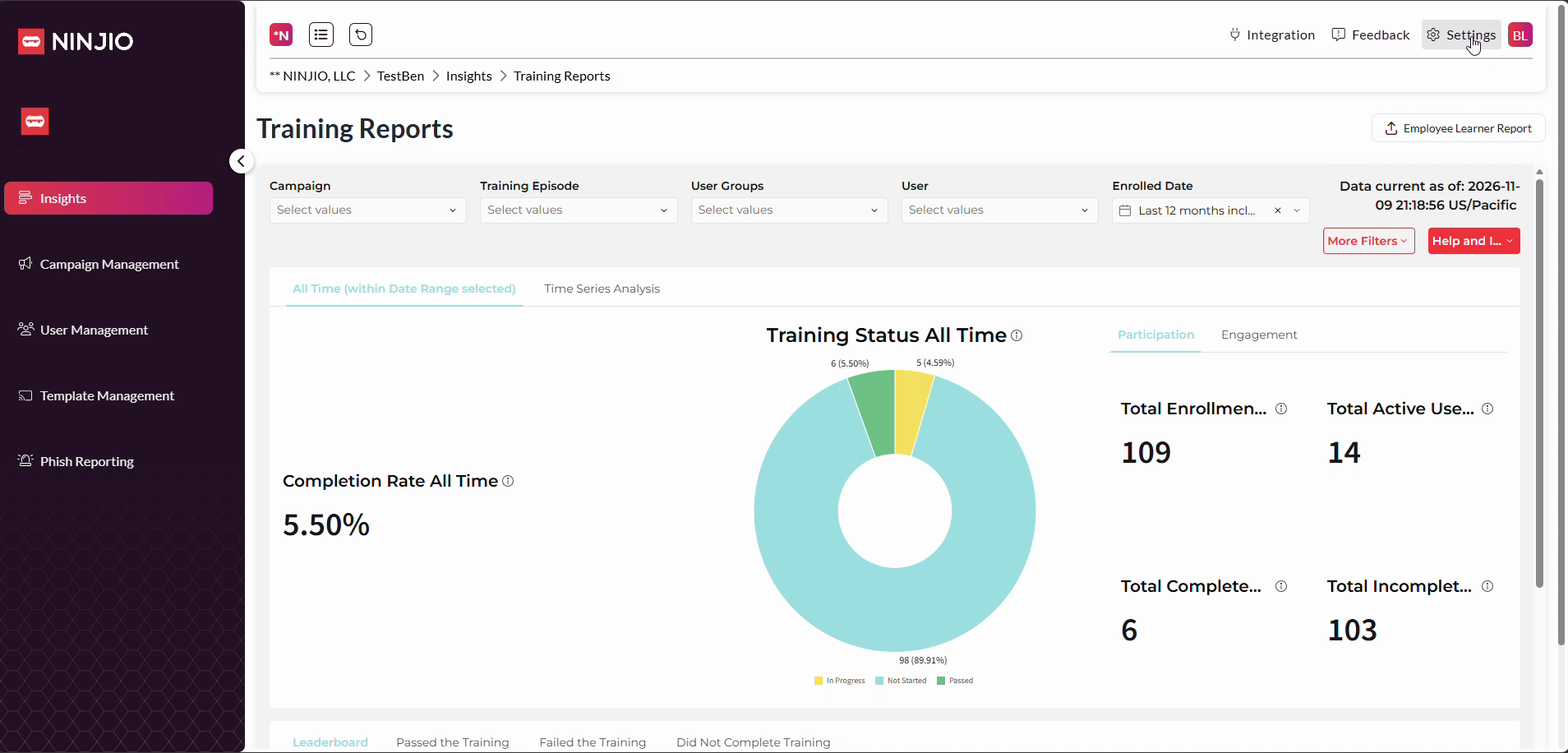
Step 1: Click Settings in the upper right-hand corner.
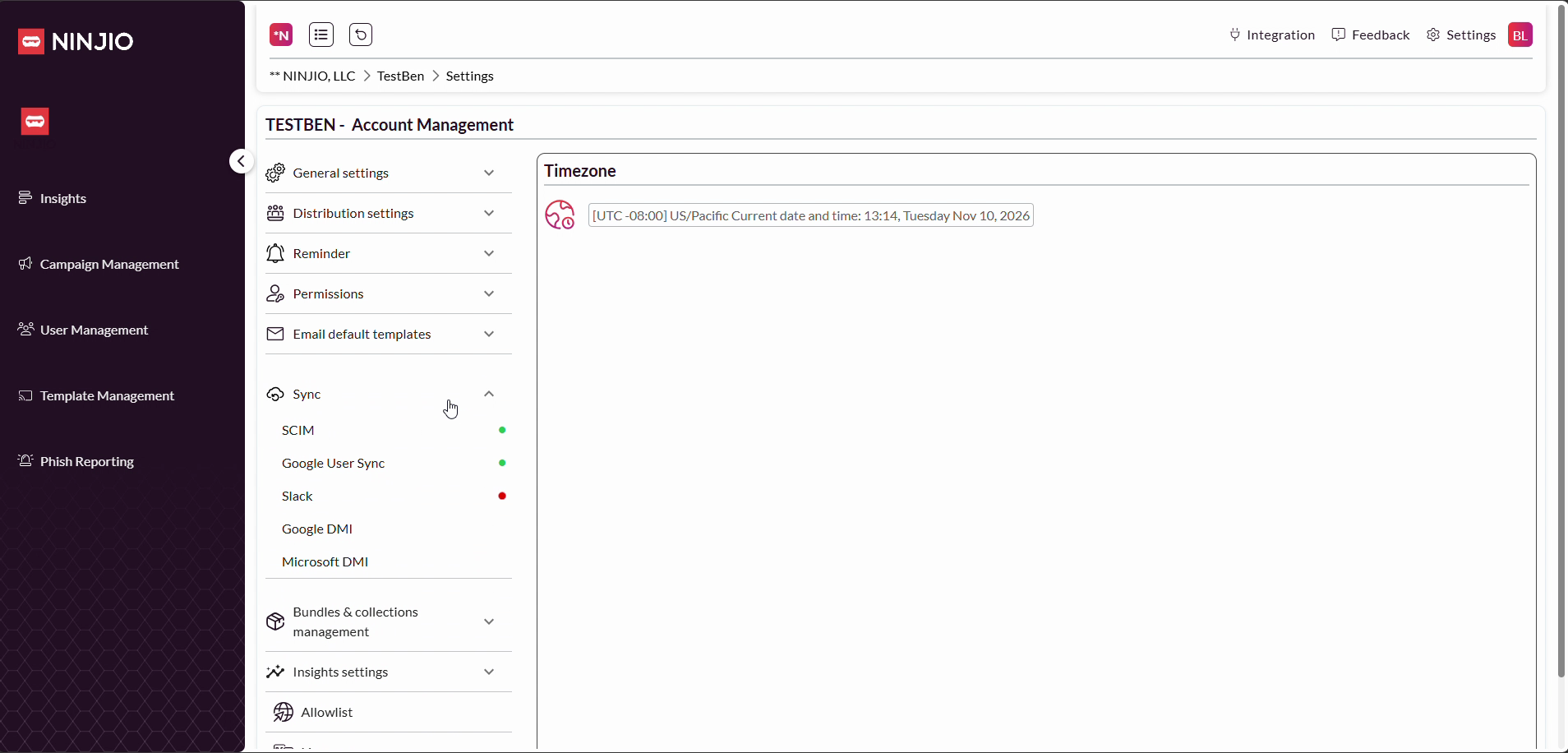
Step 2: Open the Sync dropdown.
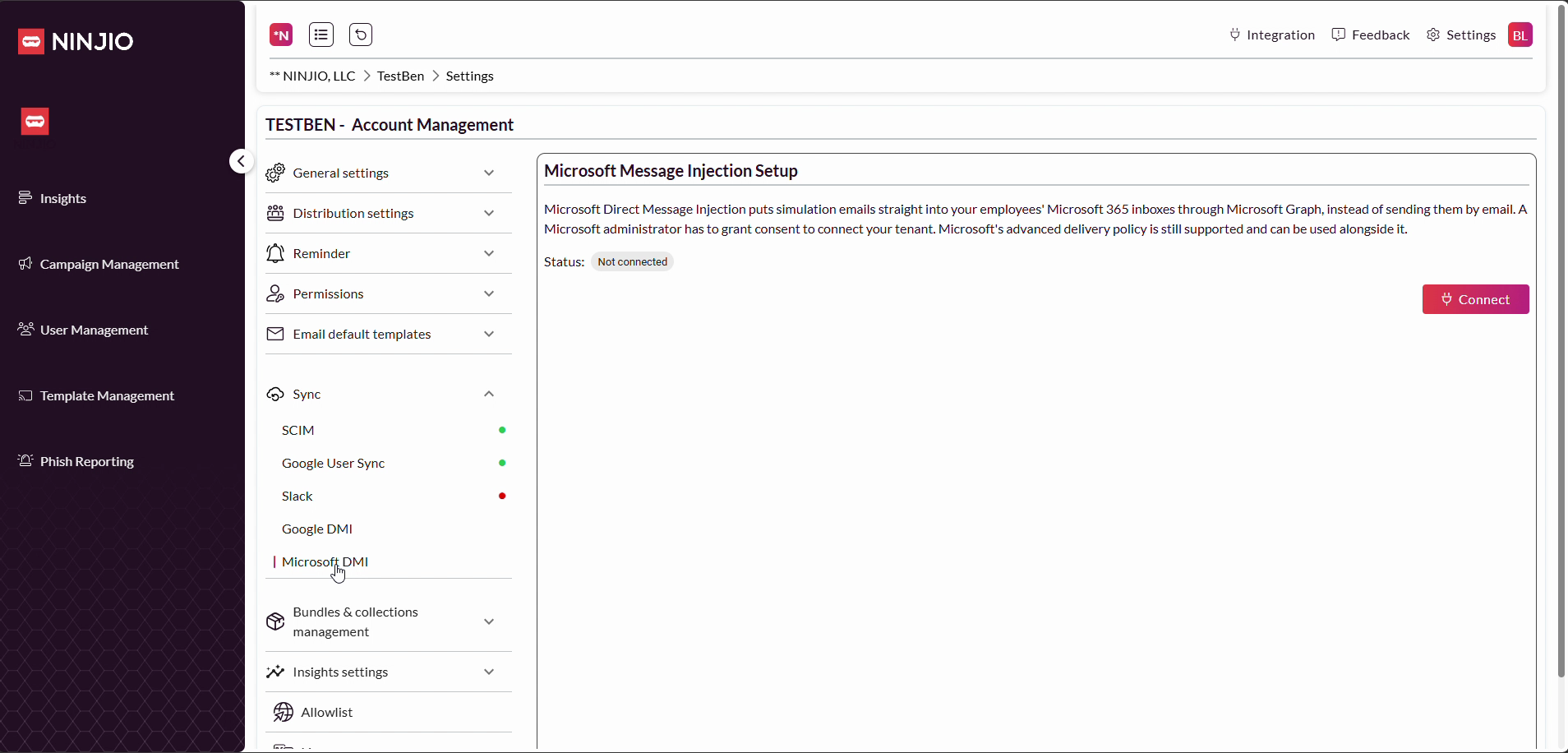
Step 3: Select Microsoft DMI.
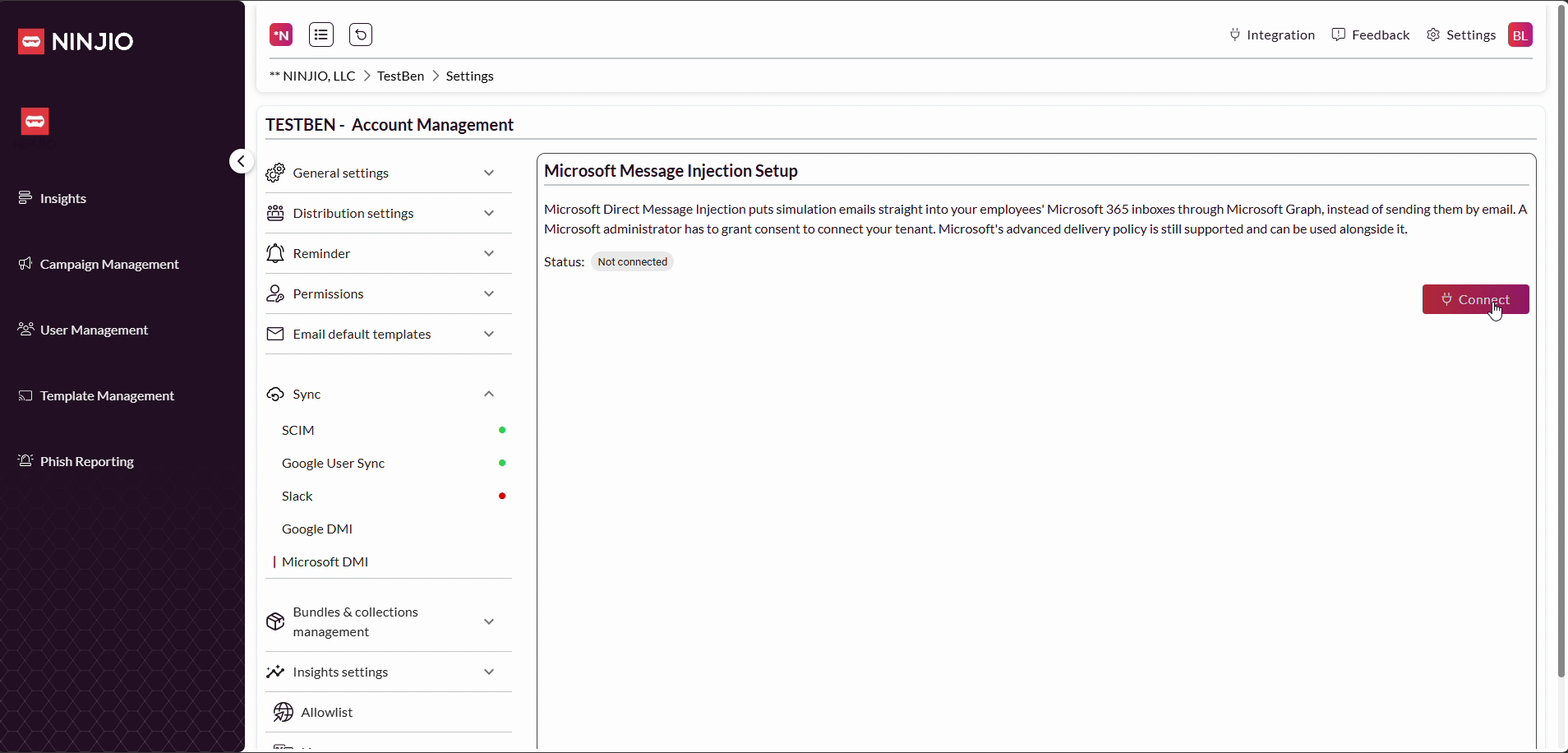
Step 4: Click the Connect button.
Step 5: Select your account to authenticate.
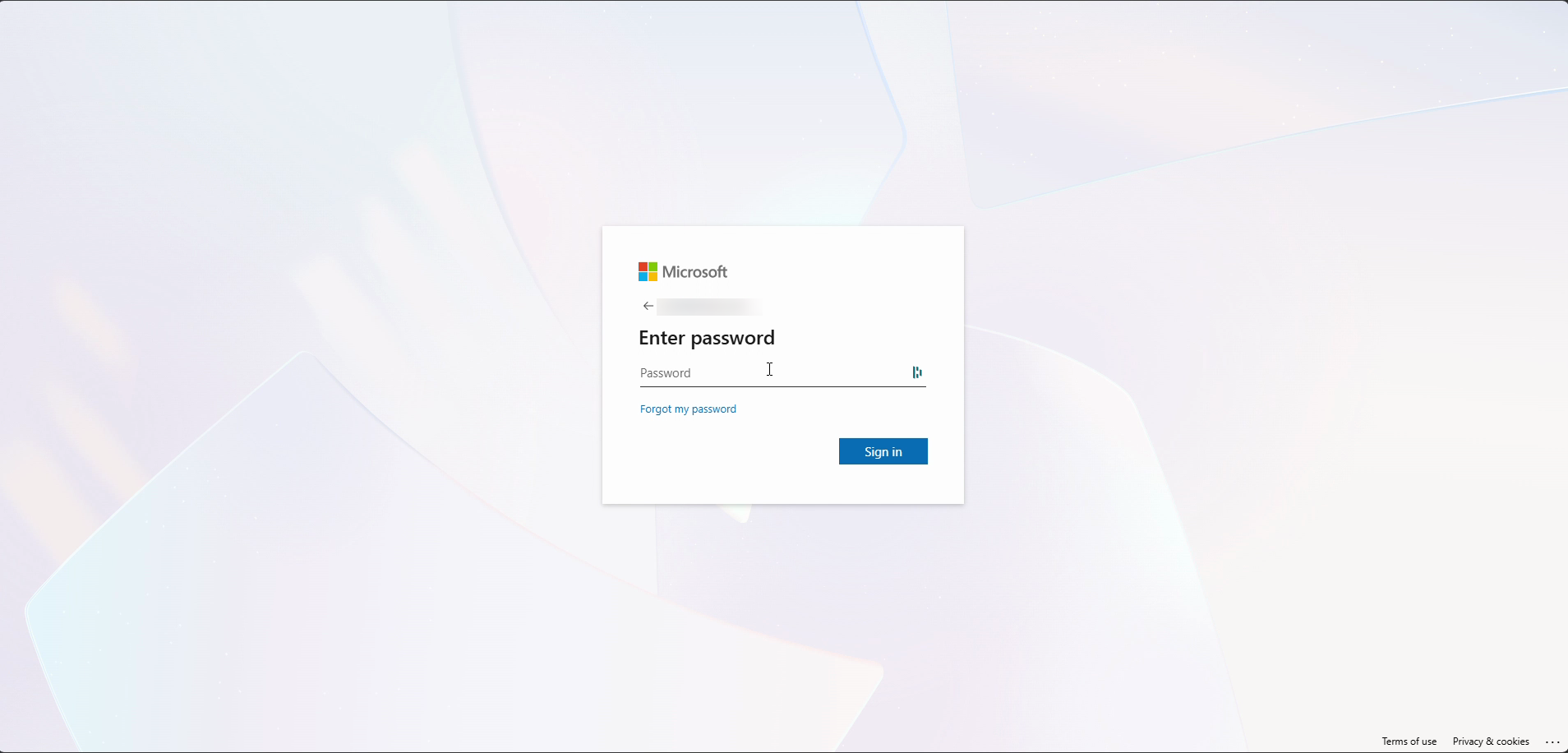
Step 6: Enter your email address.
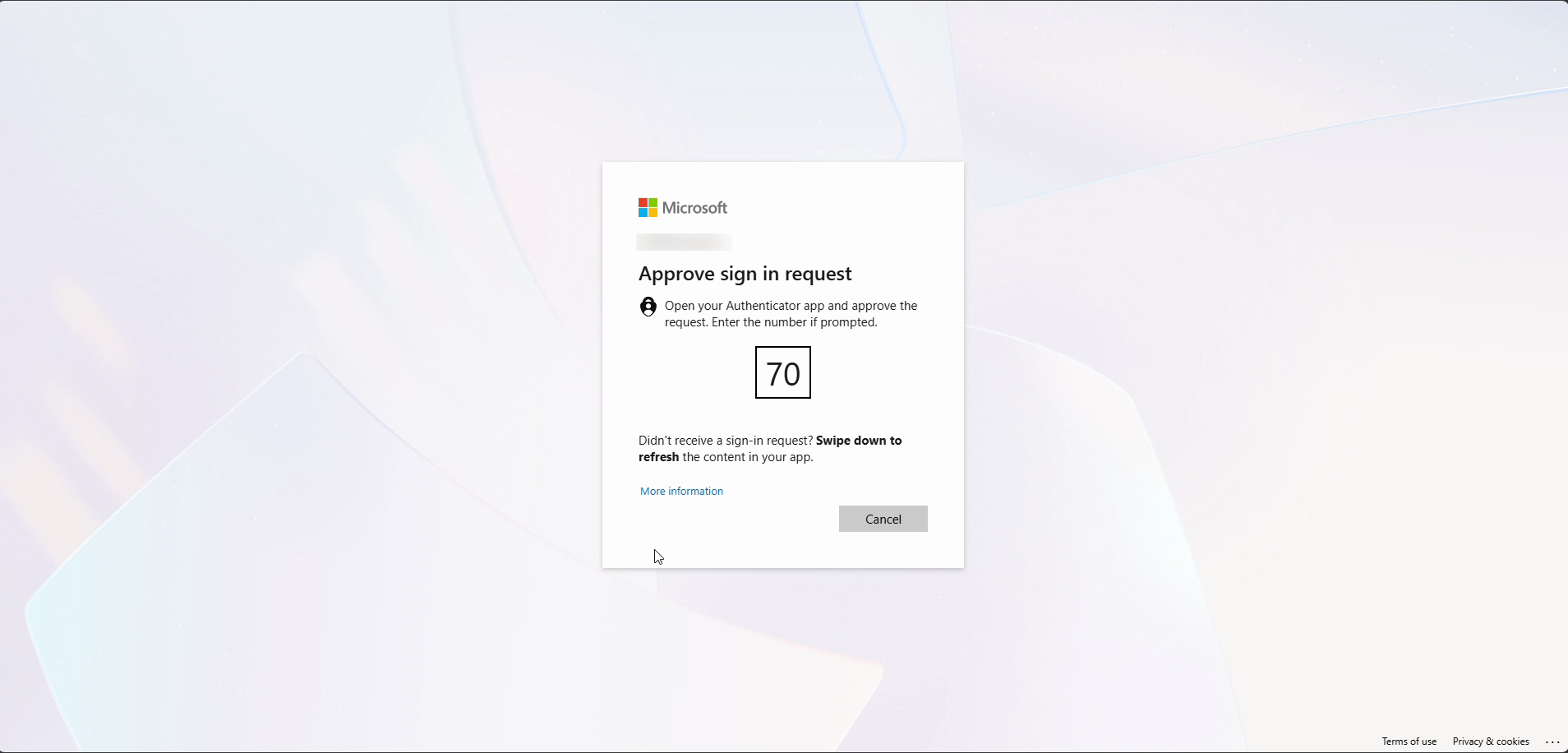
Step 7: Enter your one-time code if you have authentication set up.
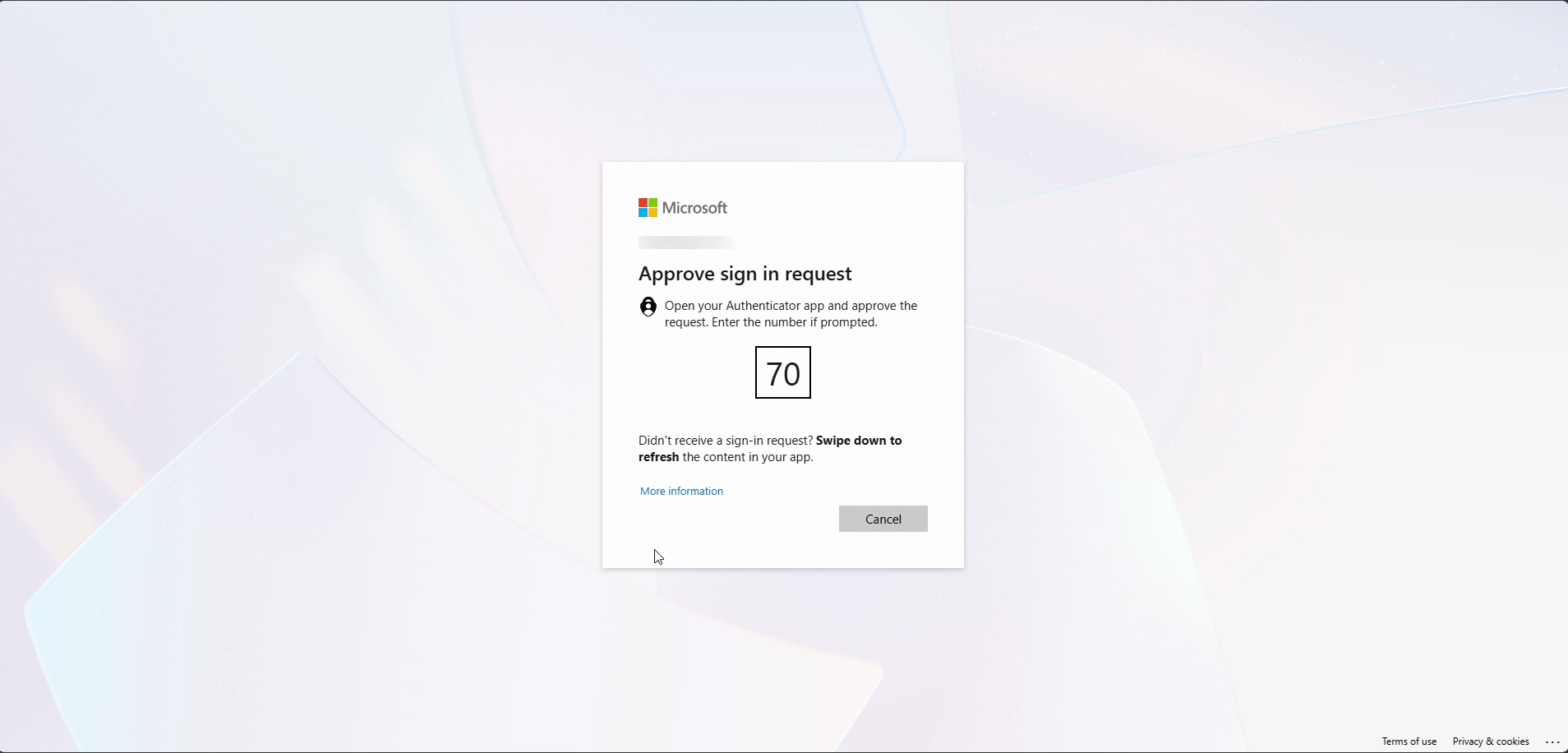
Step 8: Click Next.

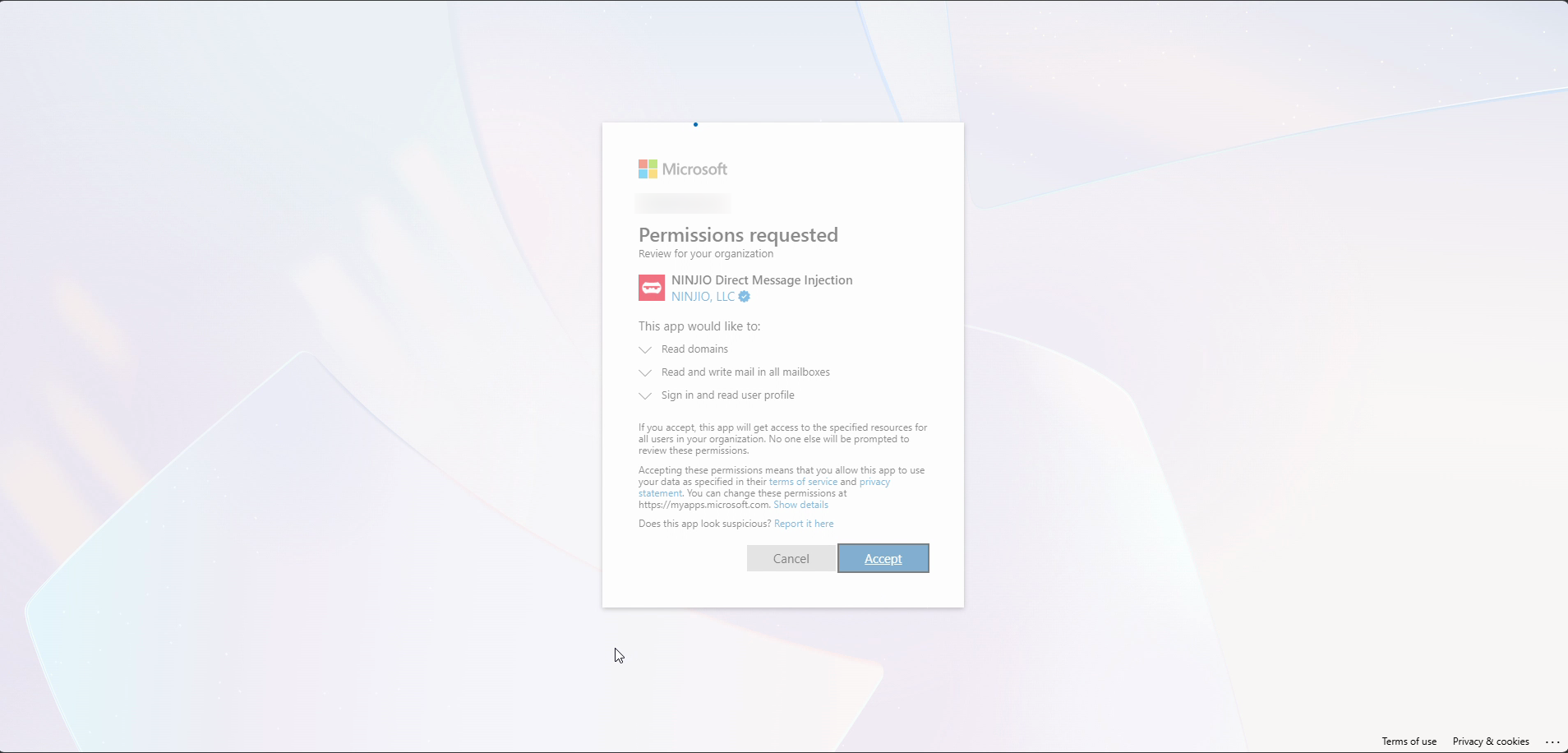
Step 9: Review the permissions request. It asks for read and write access to all mailboxes and domains, plus permission to sign in and read user profiles.
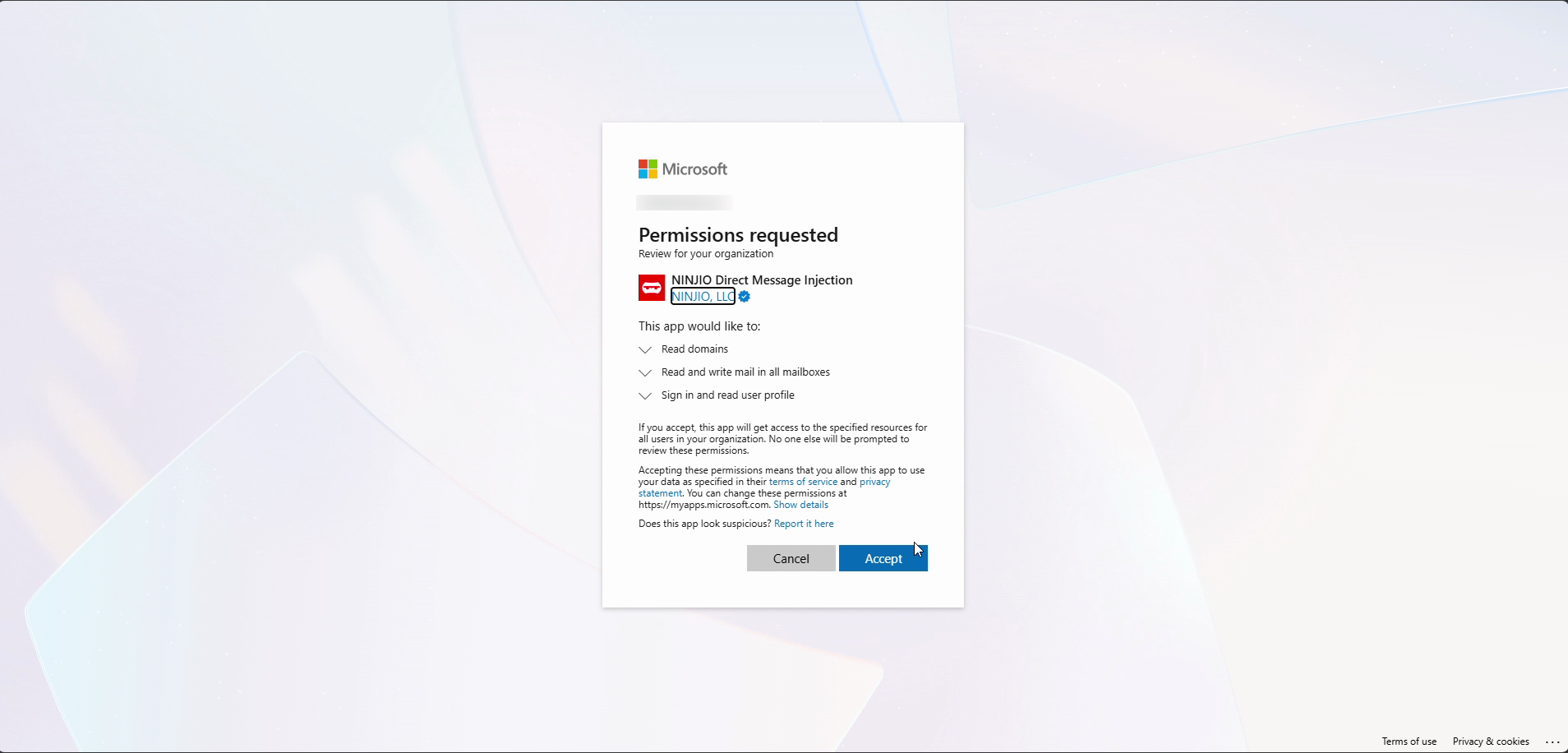
Step 10: Click Accept. You're sent back to the admin portal.
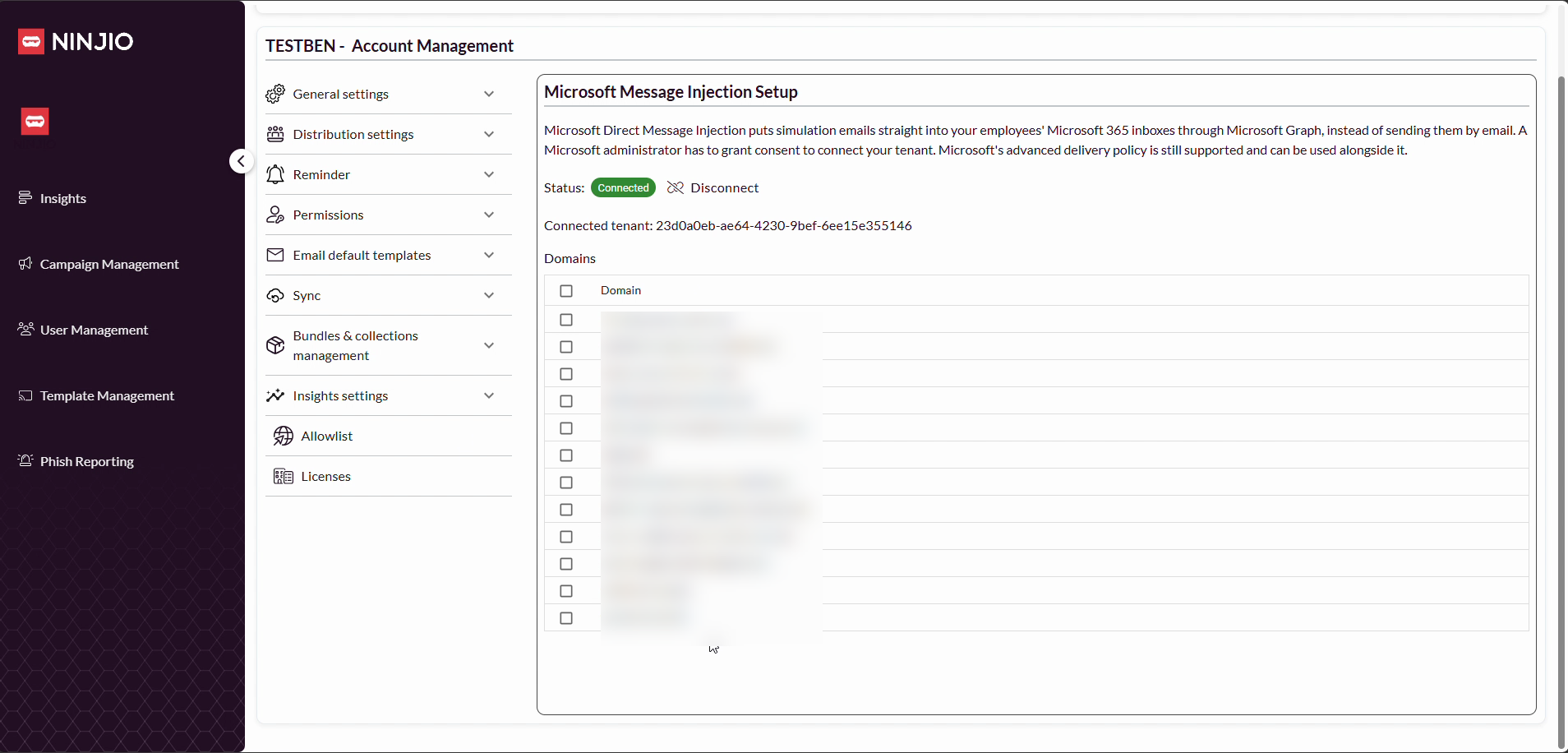
Step 11: Review the list of domains that were imported.
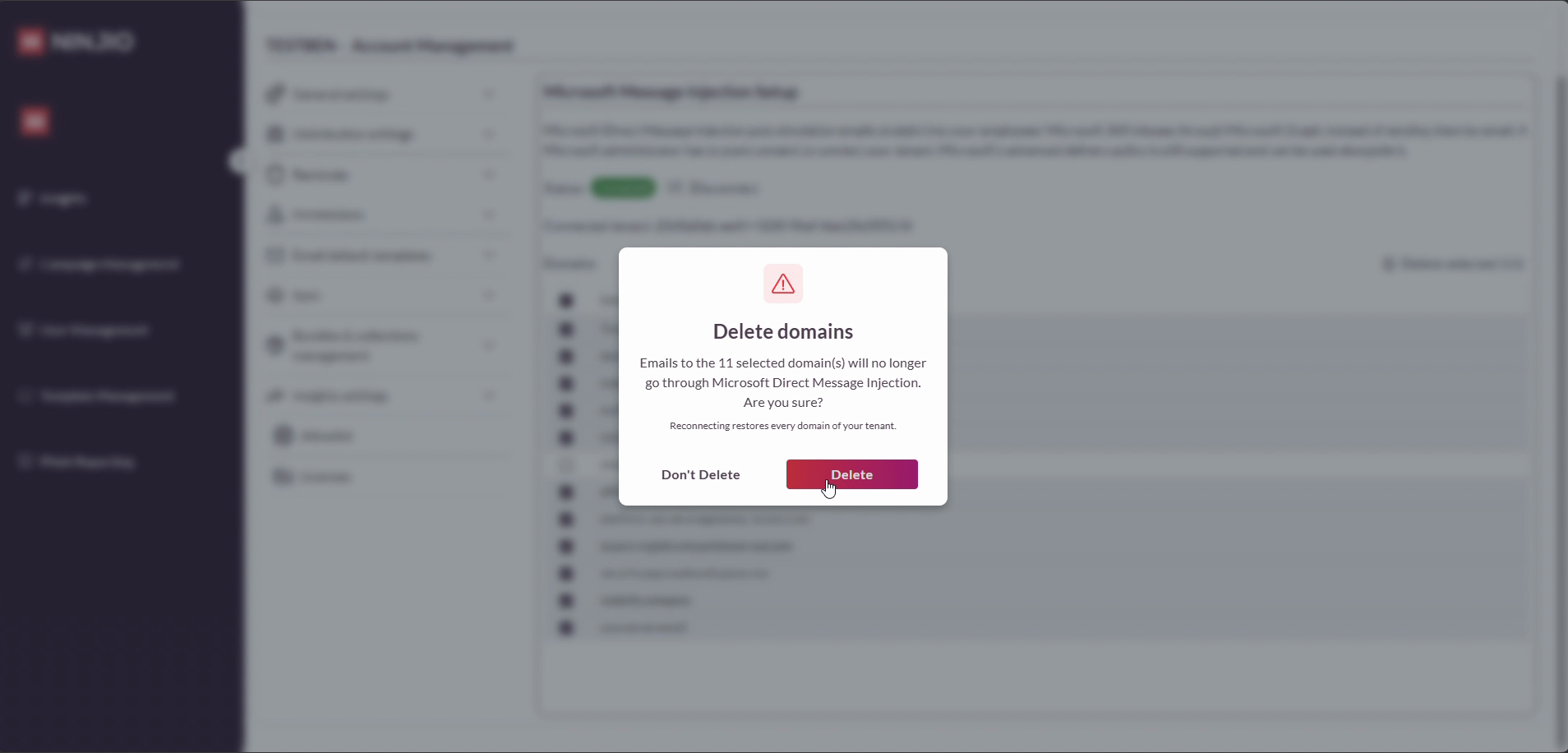
Step 12: Remove any domains you don't need. Keep only the domains your organization uses.
That's it. Your connection is ready.
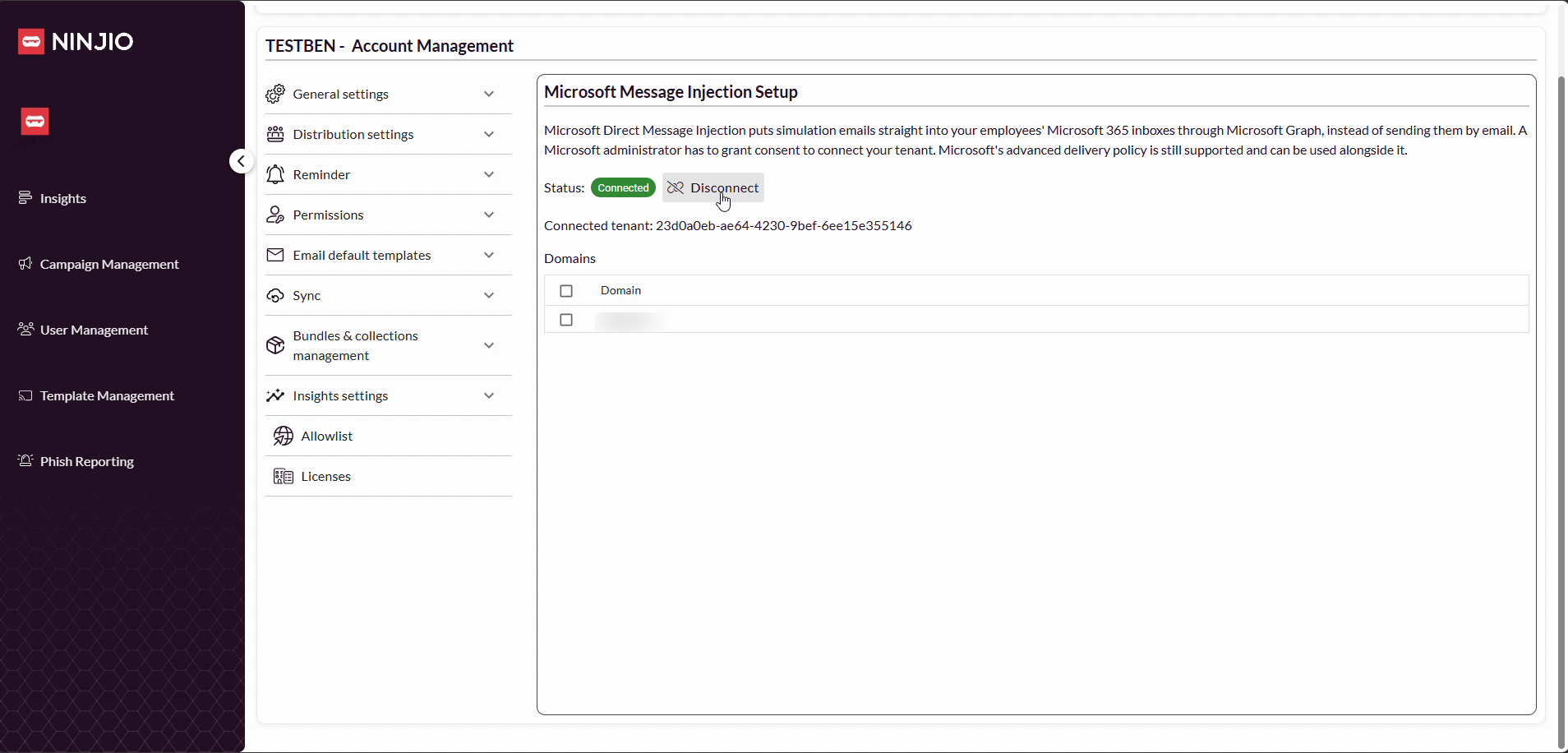
Step 1: To disconnect Microsoft DMI, click the Disconnect button.
Setting up Microsoft 365 DMI is quick, and disconnecting is just as easy. Remember to use a Global Administrator account and trim your domain list to what your organization needs. If you have any questions, reach out to support.
Comments
0 comments
Please sign in to leave a comment.