This guide provides a comprehensive overview of the User Portal Authentication feature, which introduces a verified "magic link" authentication layer for learners. This feature ensures that training content is accessed only by authenticated users while providing a consistent, bookmarkable entry point.
1. Feature Overview
The User Portal allows learners to access their training via passwordless authentication. The system uses Magic Links—one-time authentication links sent directly to the user's inbox.
How-To: Accessing the NINJIO Training Portal
Accessing your training is quick and seamless using our "Magic Link" system—no password required.
Step 1: Click the https://landing.goninjio.com/portal/login link you received—it’s bookmarkable, so save it for quick access later.
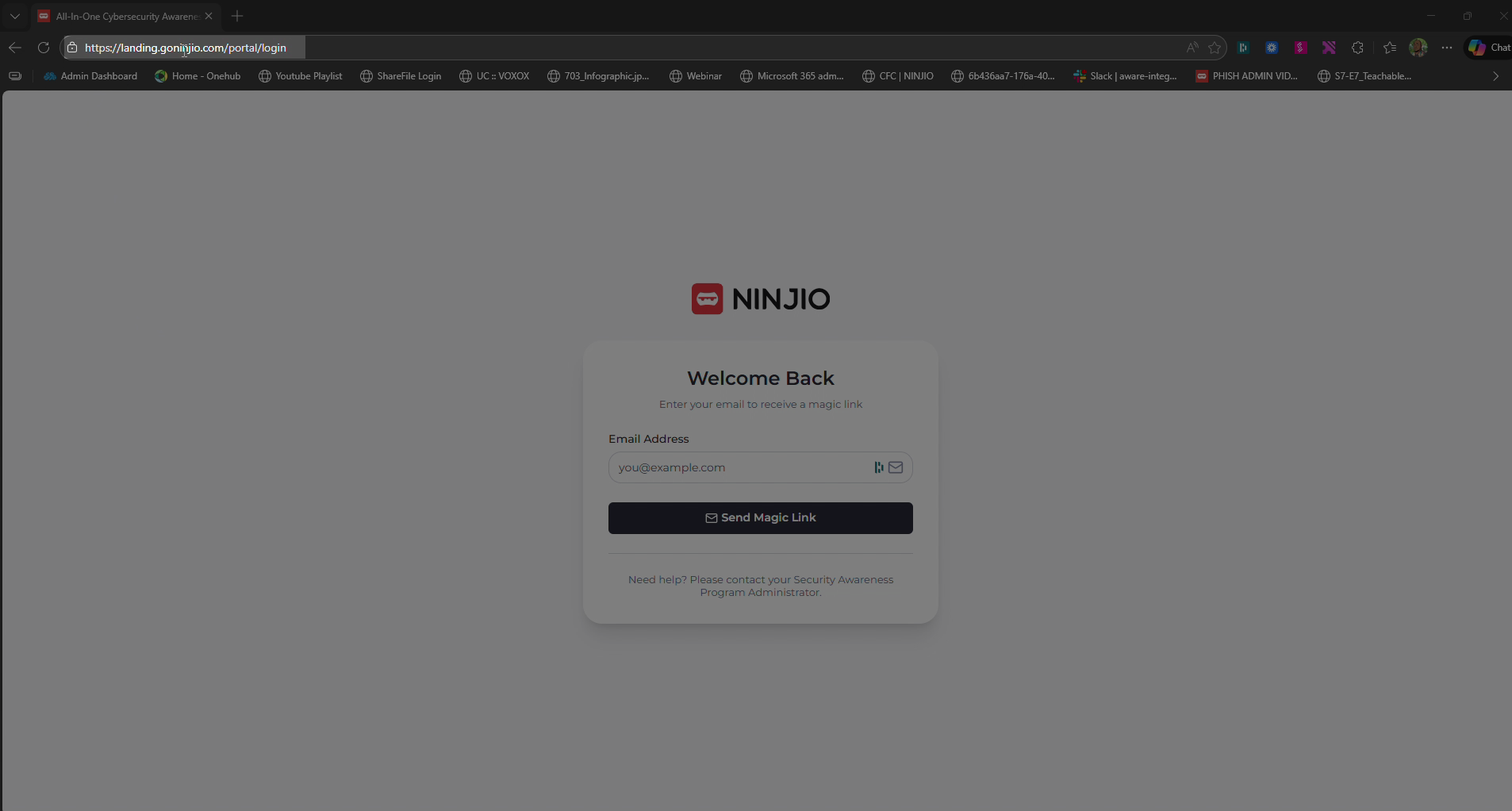
Step 2: Enter your email address in the Email field.
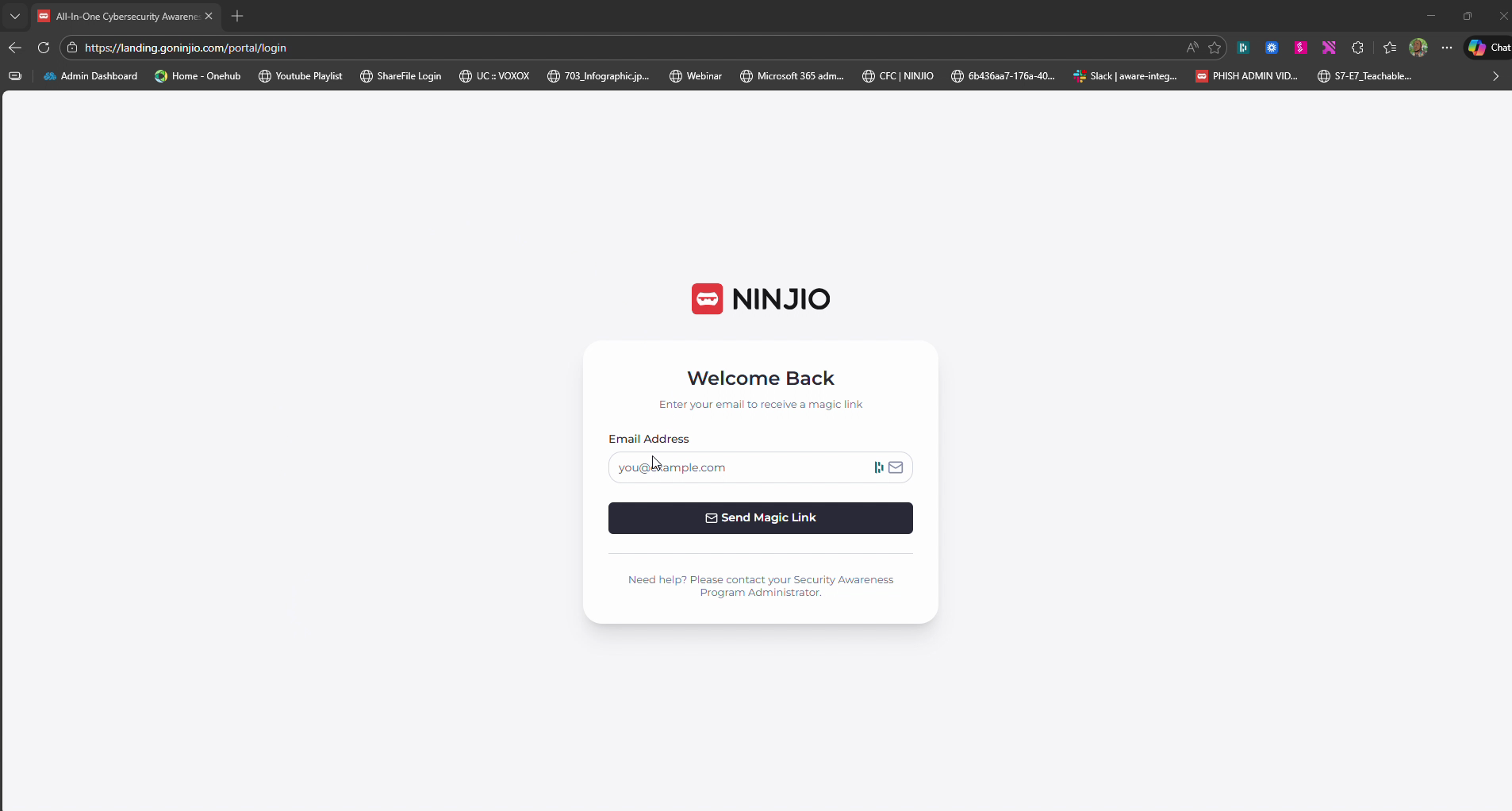
Step 3: Click Send Magic link. You’ll see a notification in the top right letting you know the sign-in email is on its way.
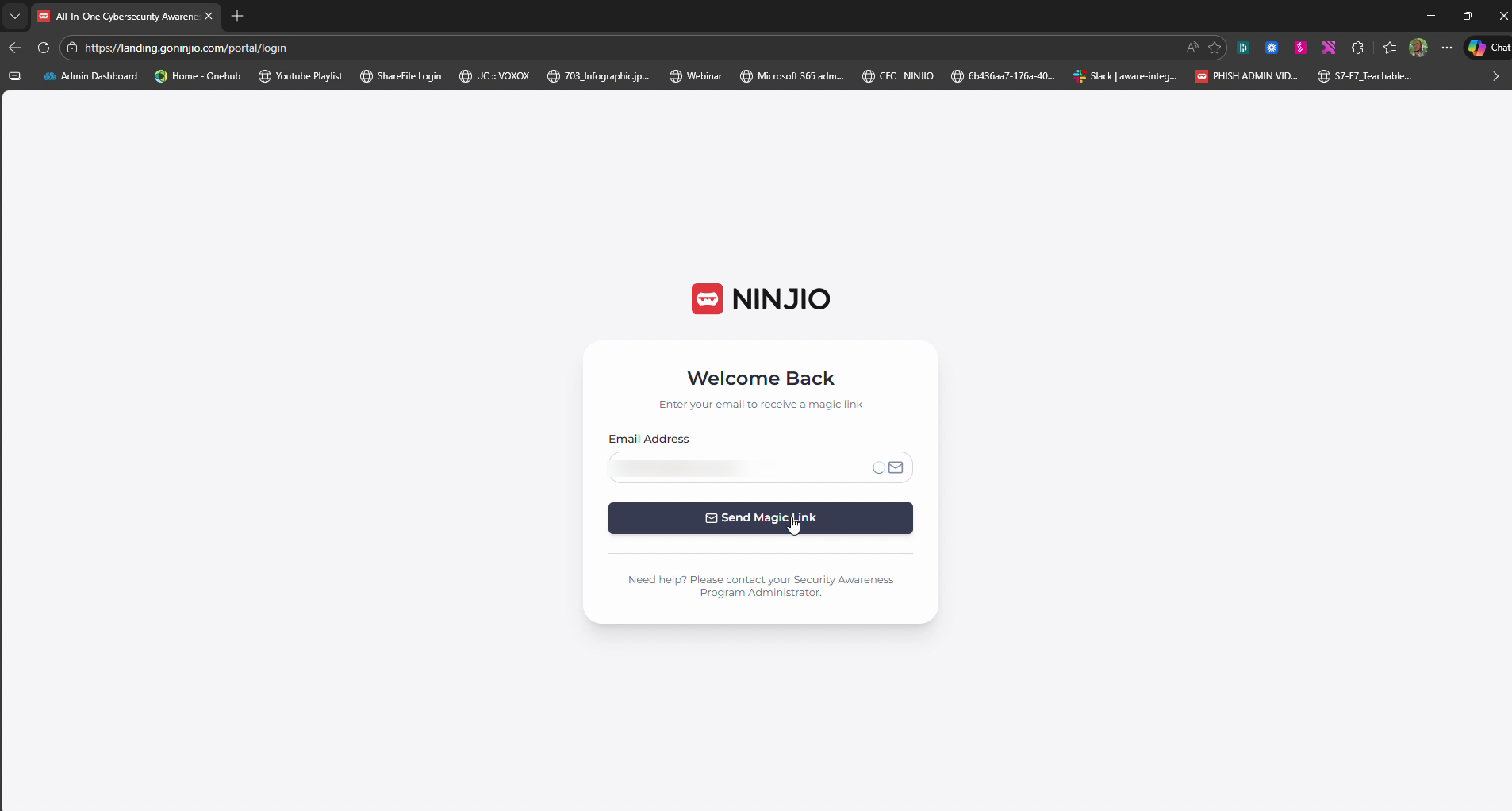
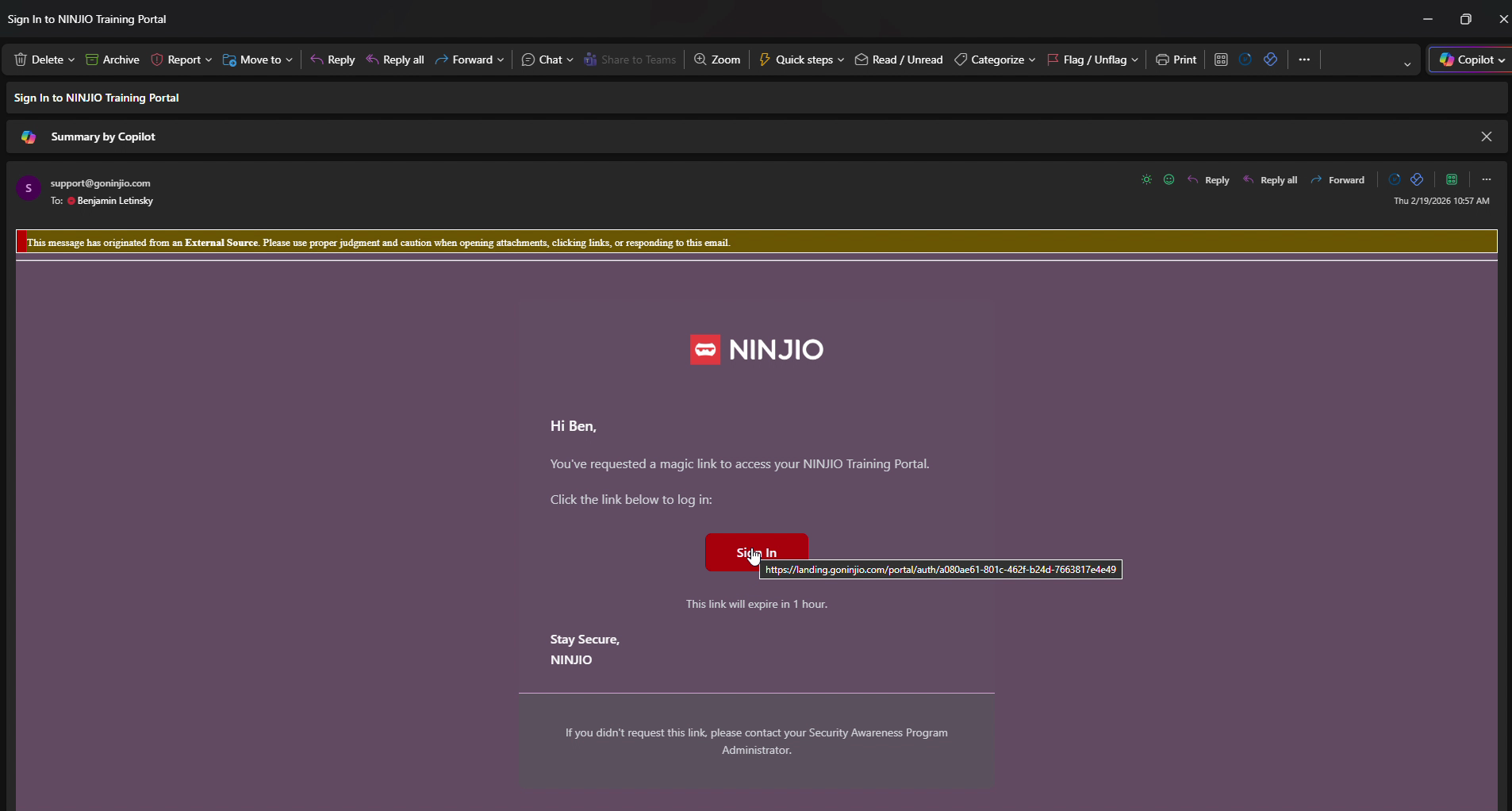
Step 4: Check your inbox for a message with your sign-in link (Sign In to NINJIO Training Portal).
Step 5: Click the Sign in button in the email. This verifies your identity and takes you straight into the portal.
Step 6: Once logged in, you’ll land on your dashboard. To watch your current outstanding training, hit the play button visible on the screen.
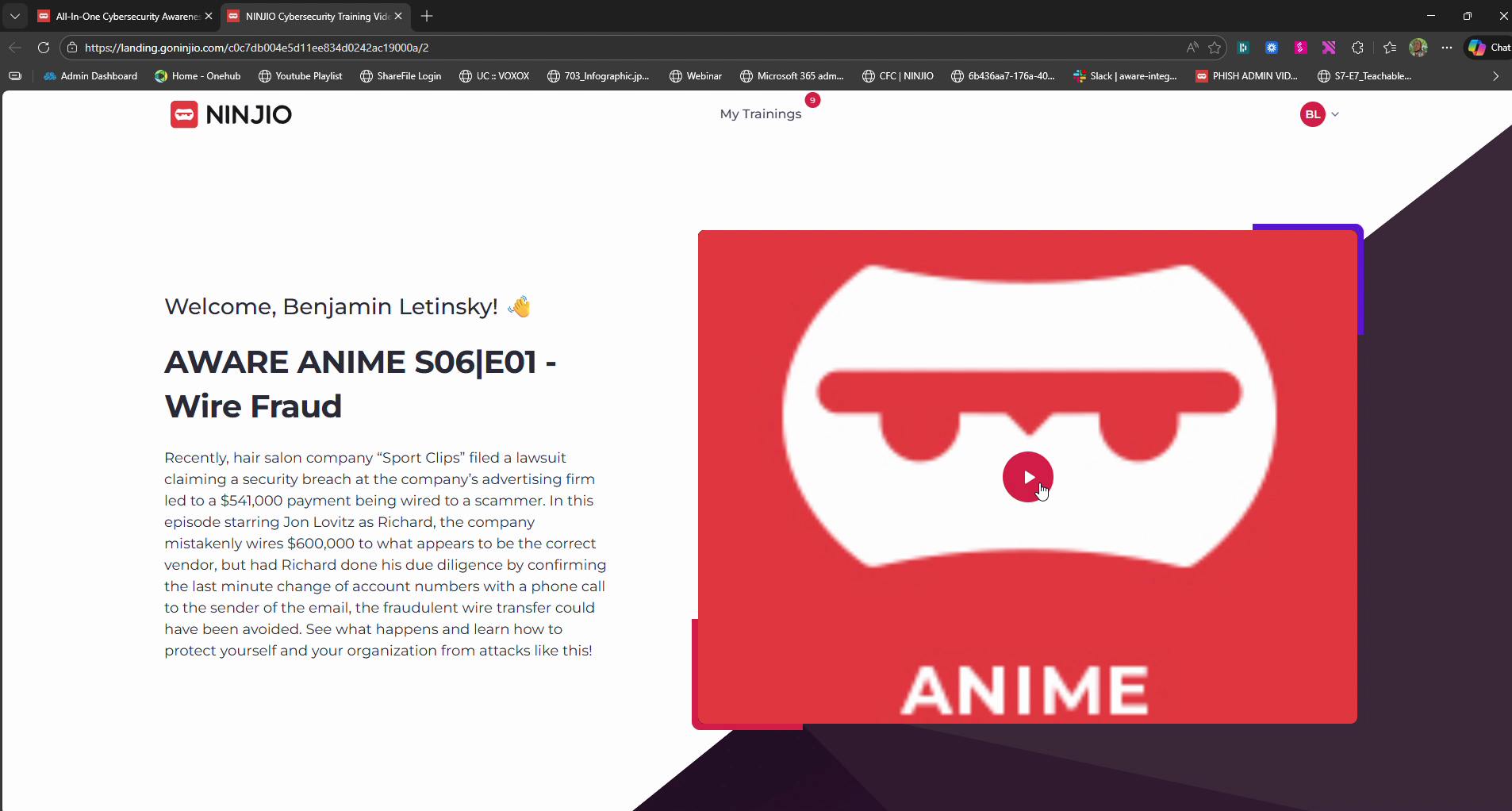
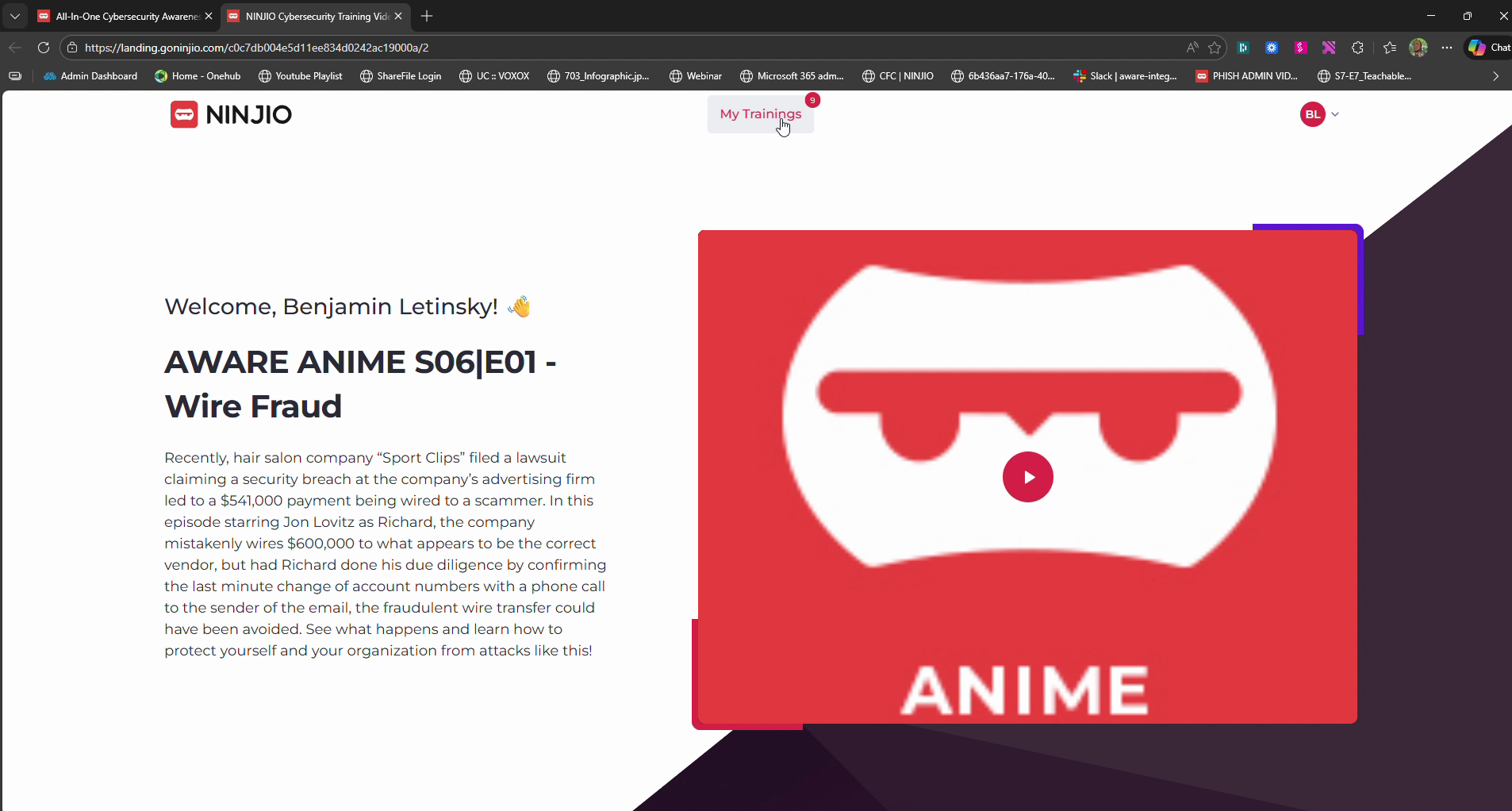
Step 7: For a full view of your progress, click My Trainings. Here, you’ll see both outstanding and completed trainings.
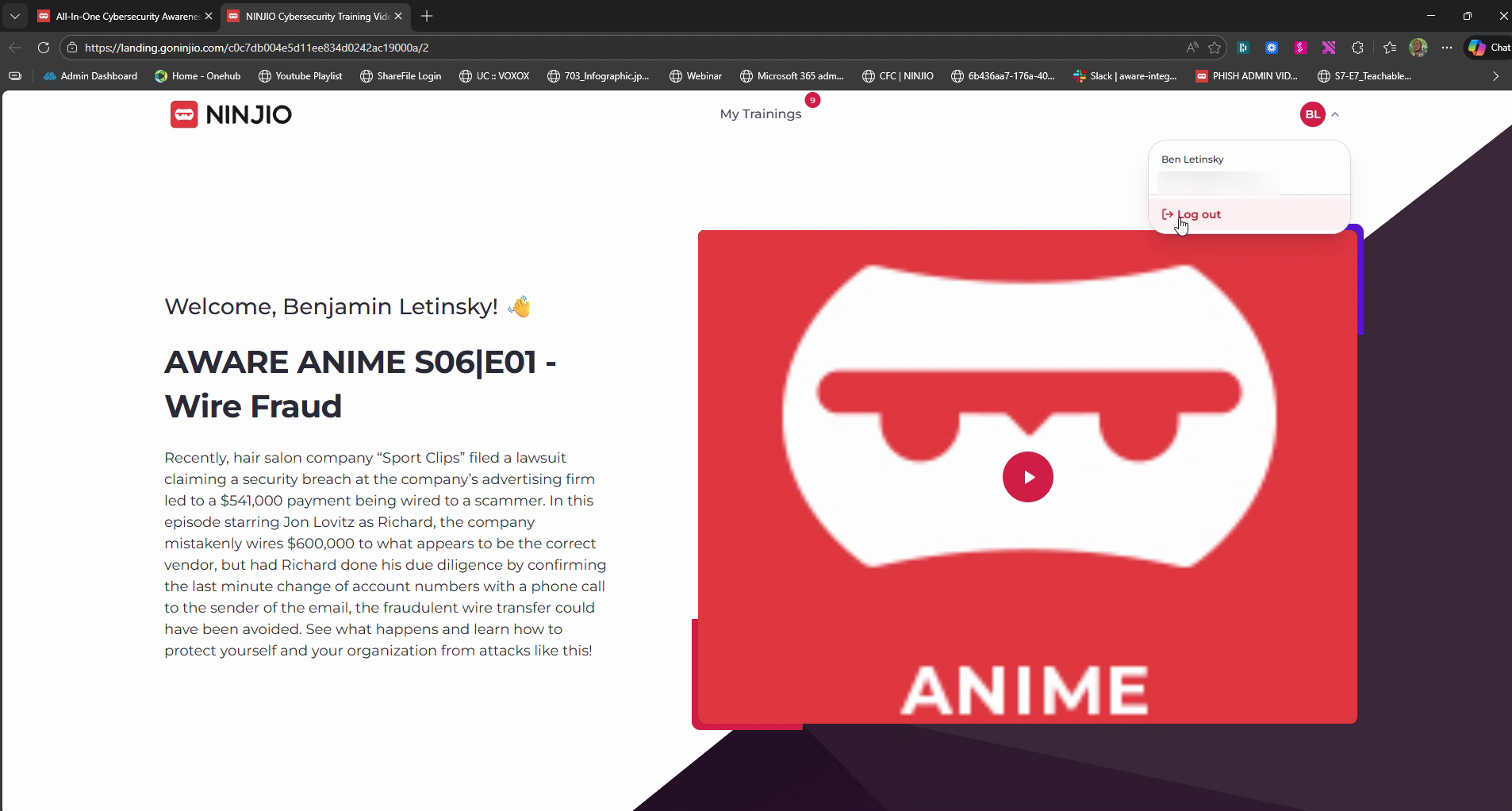
Step 8: Finished for now? Go to the top right corner, click the dropdown arrow next to your name, and select Log Out to keep your account secure.
See this quick How-To video:
How-To: Enable User Portal Access from the Admin Settings
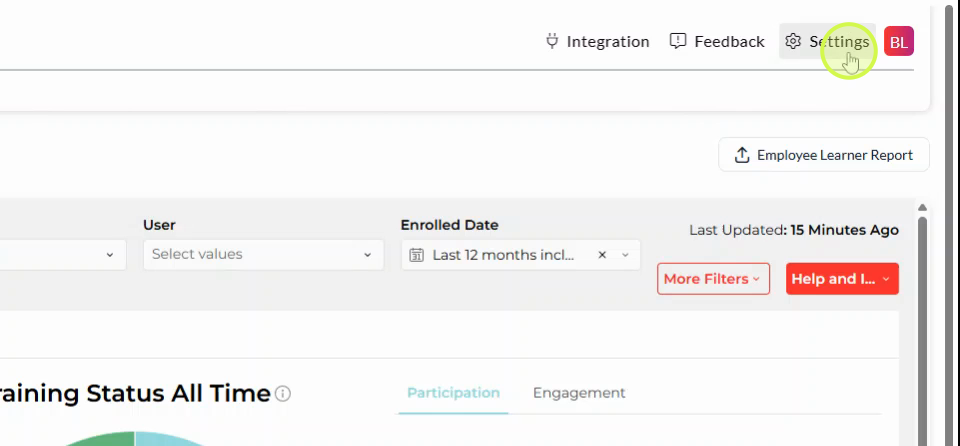
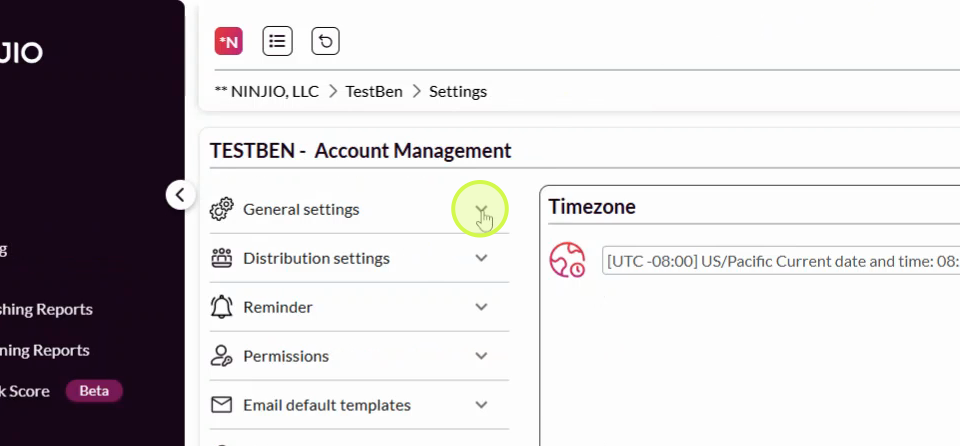
Step 1: Go to the right-hand side of your dashboard and select Settings.
Step 2: In Settings, click the General Settings dropdown.
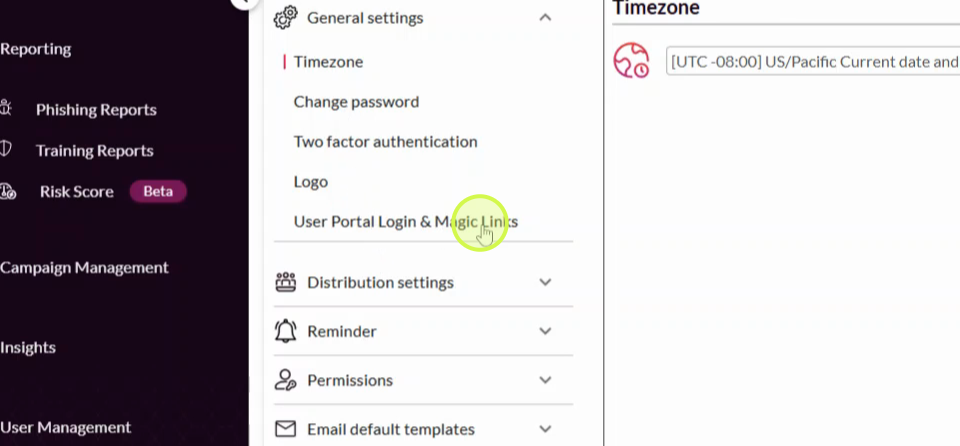
Step 3: Scroll to the bottom of the options list and find User Portal Login and Magic Links.
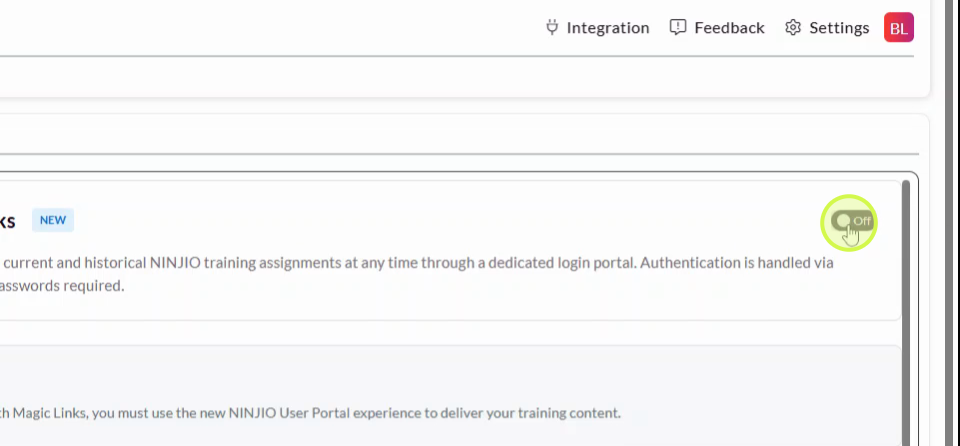
Step 4: Toggle the switch on the right side to enable authentication ON.
See this quick How-To video:
3. End-User Workflows
Learners can access the portal through two primary methods:
| Feature | Method 1: Email Training Link | Method 2: Manual Login (Bookmarked) |
|---|---|---|
| Action |
User clicks "WATCH" in a training email.
|
User visits the bookmarked URL.
|
| Authentication |
Includes a pre-authenticated link valid for 7 days.
|
User enters their email address and clicks "Send Magic Link".
|
| Access Step |
Bypasses authentication step if the link is within the 7-day window.
|
User clicks the unique link sent to their inbox (Subject: "Your Magic Link...").
|
| Outcome |
Gives user direct access into the portal.
|
Authenticates and grants the user access into the portal.
|
4. Known Limitations & Technical Constraints
Before rollout, be aware of the following constraints:
Custom URLs: This feature is incompatible with fully customized URLs (e.g.,
training.mycompany.com). It only supports the standardlanding.goninjio.comURL.Branding: The portal page and magic link emails cannot be customized with client logos or branding at this time.
Multi-Tenant Admins with Employee Association: Admins who have multiple employee accounts within several client tenants may encounter access confusion. Using unique email accounts or aliases per employee is recommended.
Cache Clearing: If a user clears their browser cache, they will be required to re-authenticate.
Sending Domain: The magic link emails will come from no-reply@goninjio.com.
5. Link & Session Expirations
To maintain security, various components of the magic link access system have specific expiration windows:
Magic Link (Inbox): The link emailed to the user expires after 1 hour.
Training Email Links: These remain valid for 7 days before requiring the user to re-authenticate.
Authenticated Session: A user's session typically remains active for 30 days unless the cache is cleared or security policies trigger an earlier expiry.
6. FAQ
Why is the portal asking for my email when I click a training link? This is a security feature to ensure only you can access your training content. You must enter your email to receive a "magic link" in your inbox, which will grant you access.
Do I need to remember a password for the NINJIO portal? No, users do not need to remember a password. Your email address and the one-time magic link handle the authentication process.
My magic link has expired. What should I do? Magic links sent to your inbox are for immediate use and typically expire within 1 hour. Simply go back to the magic link page and request a new one by entering your email again.
How long does my authentication session last? Once you have authenticated, your session typically remains active for 30 days. However, clearing your browser cache will require you to re-authenticate in again.
What happens if my training link from an old email doesn't work? Individual training links now expire after 7 days. If a link is too old, you will be prompted to request an authenticated link through the magic link page to access your training.
Can we customize the portal page or magic link emails with our company logo? Currently, the portal page and magic link emails follow NINJIO’s default branding and cannot be customized.
Is this feature compatible with our custom training URL (e.g., https://www.google.com/search?q=training.ourcompany.com)? No. This feature is only compatible with the standard
landing.goninjio.comURL.Is this a SSO (Single Sign-On) solution? It is not a SSO solution, but it provides an email verification an alternative for organizations that require authenticated access.
Why is the system getting confused when I try to test this as an Admin? Admins or Support employee accounts that exist in multiple client tenants may experience "Multi-Tenant Admin Employee Association". It is recommended to use unique email accounts or aliases per employee for each tenant when testing this feature.
Why use Magic Links instead of traditional passwords? Traditional passwords represent a significant vulnerability due to password reuse and credential stuffing attacks. By utilizing Passwordless Authentication, we ensure that access is tied to the learner’s live corporate email session. If a user has access to their professional inbox, they are verified to access their professional training. This moves the security boundary to your organization's existing Identity Provider (IdP).
How are the Magic Links protected during transit? All Magic Links are delivered via SMTP over TLS (Transport Layer Security), ensuring the link is encrypted between our mail servers and yours. Furthermore, the links contain a high-entropy, cryptographically secure token that is virtually impossible to guess or brute-force.
-
What are the specific expiration policies? Link Expiration: Tokens expire one hour after issuance. This narrow window limits the risk of "link harvesting" from mail archives.
Single-Use Logic: Each link is cryptographically invalidated the moment it is used to establish a session.
Session Revocation: While we use browser cookies to provide a seamless experience, any session that remains inactive for 30 days is automatically revoked, requiring the user to re-verify their identity via a new email link.
-
How are the authentication cookies secured on the learner's device? Our platform utilizes industry-standard browser cookie attributes to prevent common web-based attacks:
-
Secure: Cookies are only transmitted over encrypted HTTPS connections.
HttpOnly: These cookies are inaccessible to client-side scripts, providing a robust defense against Cross-Site Scripting (XSS).
SameSite=Lax: This attribute protects against Cross-Site Request Forgery (CSRF) by ensuring cookies are not sent with cross-site sub-requests.
-
Does this feature support multi-factor authentication (MFA)? The User Portal leverages the security of the user's email provider. If your organization requires MFA to access corporate email (via Okta, Azure AD, or Google Workspace), that MFA carries over to our portal. By verifying the email, we are effectively piggybacking on your existing, hardened authentication infrastructure.
What happens if a user's email is compromised? As with any password-reset workflow or magic-link system, access is dependent on the security of the user's inbox. We recommend that all clients enforce MFA on their primary corporate mailboxes to ensure the integrity of all downstream services, including our training platform.
Comments
0 comments
Please sign in to leave a comment.